Table of Contents
Improve WiFi speed at home
Slow Wi-Fi can ruin your entire day.
Slow internet can ruin your productivity. If you’re trying to improve WiFi speed at home, small adjustments like router placement and band selection can make a big difference.
Buffering during a movie, lag during an online meeting, or high ping while gaming — it’s frustrating and often feels complicated to fix.
The good news?
In most cases, you don’t need to call a technician. In this guide, you’ll learn exactly how to improve WiFi speed at home using simple, proven optimization techniques.
As someone who has tested home routers across small apartments and large houses, I’ve seen how simple placement changes alone can increase speed by up to 30%. Many users upgrade their plan unnecessarily when the real issue is poor configuration.
In this step-by-step guide, I’ll walk you through 10 proven ways to boost your home WiFi performance, explained in simple language so even beginners can follow along.
Why Is Your WiFi So Slow?
Fix slow WiFi
Before fixing the issue, let’s understand the root causes of slow internet speed at home.
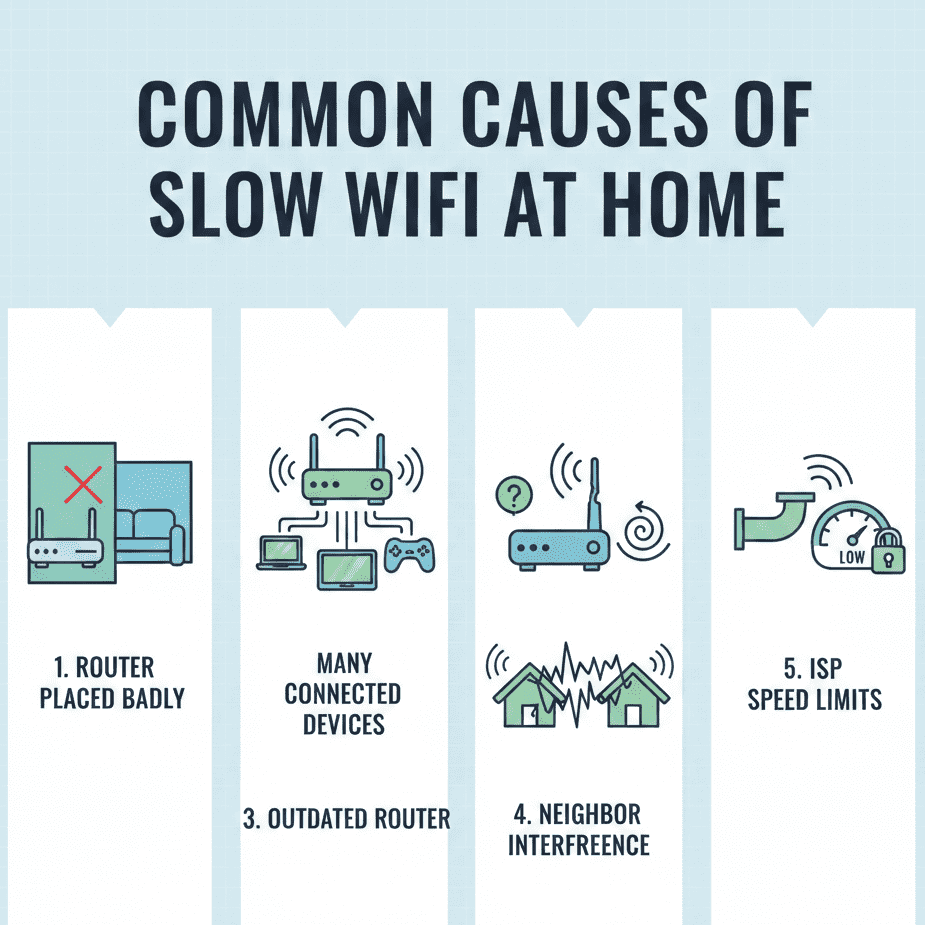
1. Poor Router Placement
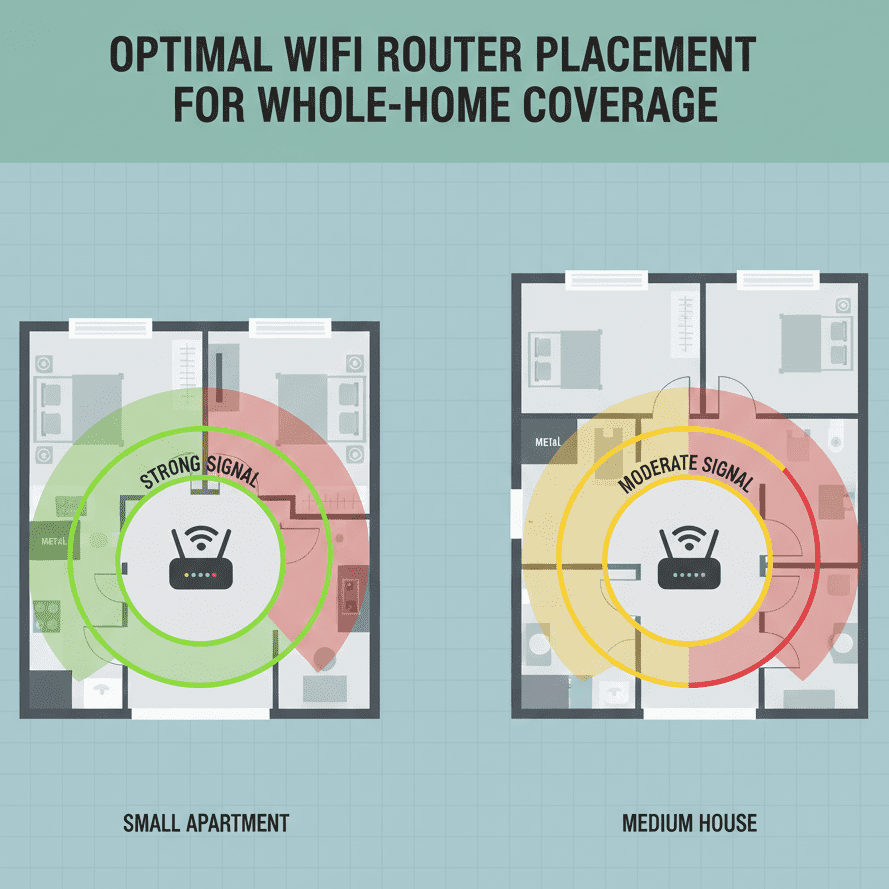
One of the easiest ways to improve WiFi speed at home is proper router placement. In many home environments, improper router placement can reduce effective signal strength by 30–50% due to signal absorption by concrete walls, metal surfaces, mirrors, and electronic interference.
Proper positioning is one of the most effective ways to improve WiFi speed at home without spending any money.
Multi-floor houses are especially prone to signal loss because WiFi signals weaken significantly when passing through dense materials.
2. Too Many Connected Devices
Every smartphone, laptop, smart TV, and gaming console consumes bandwidth.
3. Outdated Router Hardware
Older routers don’t support modern standards like WiFi 5 or WiFi 6.
4. Network Interference
If your neighbors are using the same WiFi channel, signal congestion can occur.
5. Internet Plan Limitations
Sometimes your router isn’t the problem — your ISP speed plan might be too slow.
Understanding the cause helps you apply the right solution.
Identifying the root issue is the first step to fixing slow WiFi effectively.
What Internet Speed Do You Actually Need?
The internet speed you need depends on your usage. For basic browsing and email, 10–25 Mbps is enough. HD streaming and video calls require 25–50 Mbps.
4K streaming, gaming, or multiple users need 100–300 Mbps. Large households with heavy usage should consider 500 Mbps or higher for smooth performance.
According to broadband performance guidelines published by the Federal Communications Commission (FCC), recommended speeds vary depending on usage patterns and connected devices.
How to Test Your WiFi Speed Correctly
Testing your WiFi speed properly helps you identify whether the issue is your router, device, or internet plan. Accurate testing is a critical part of any WiFi troubleshooting guide because it helps determine whether you need to adjust settings or upgrade hardware.
Follow these steps for accurate results:
1. Use a Reliable Speed Test Tool
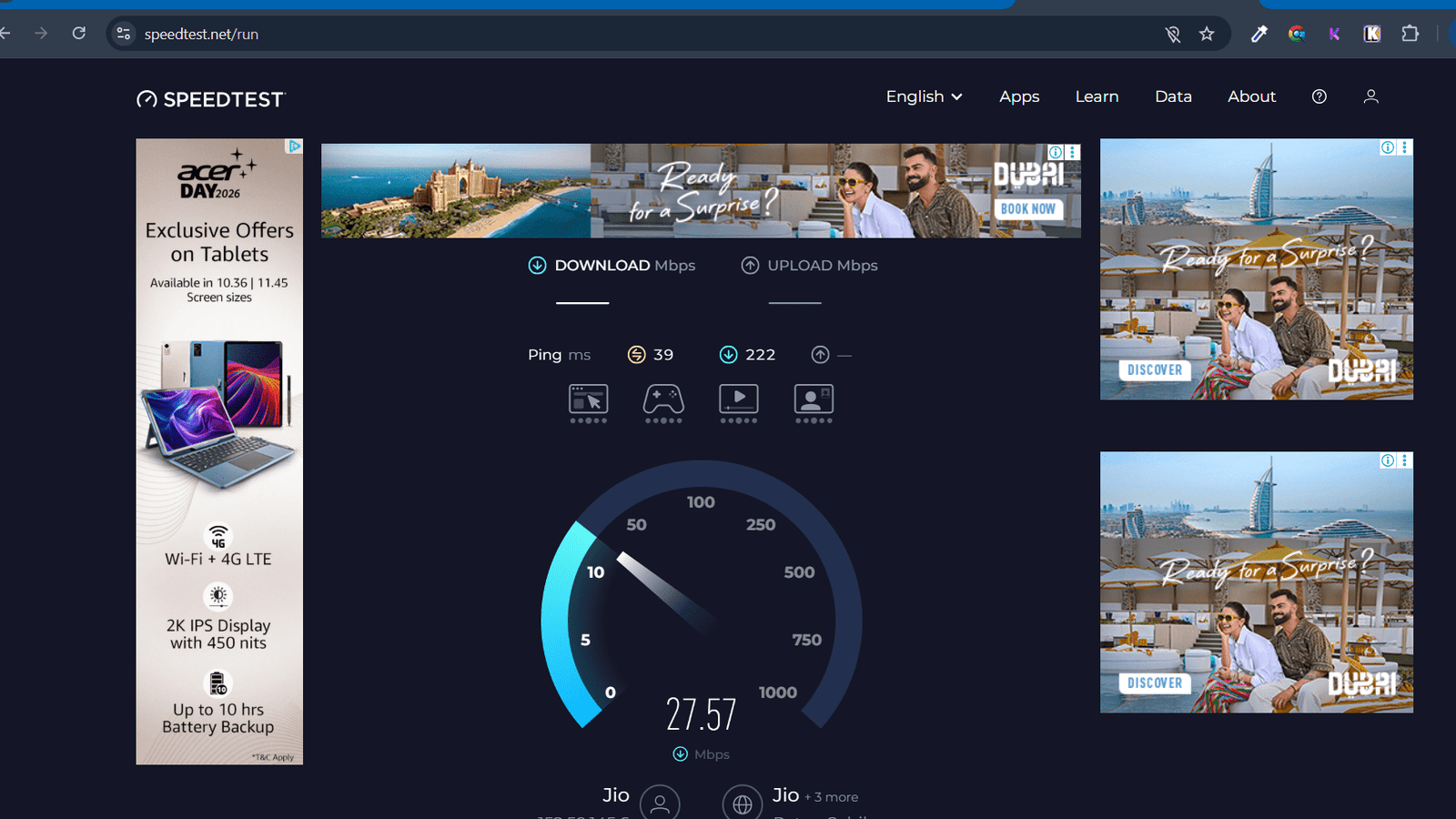
Use trusted tools like Speedtest by Ookla or Fast.com to measure download speeds, upload speed, and latency (ping).
2. Test Near the Router First
Stand close to your router while testing. This gives you the maximum possible to improve WiFi speed at home and sets a performance baseline.
3. Disconnect Other Devices
Pause streaming, downloads, and background updates. Other active devices can reduce speed during the test.
4. Run Multiple Tests
Test at least 2–3 times at different times of the day (morning, afternoon, evening). Network congestion can affect results.
5. Compare With Your Plan Speed
Check your internet plan speed from your ISP account and compare it with the test results. If you’re consistently getting much lower speeds, the issue may be with your router setup or service provider.
6. Test With Ethernet for Accuracy
For the most accurate result, connect your laptop directly to the router using an Ethernet cable. If wired speed is much higher than WiFi speed, the problem is likely wireless interference or router placement.
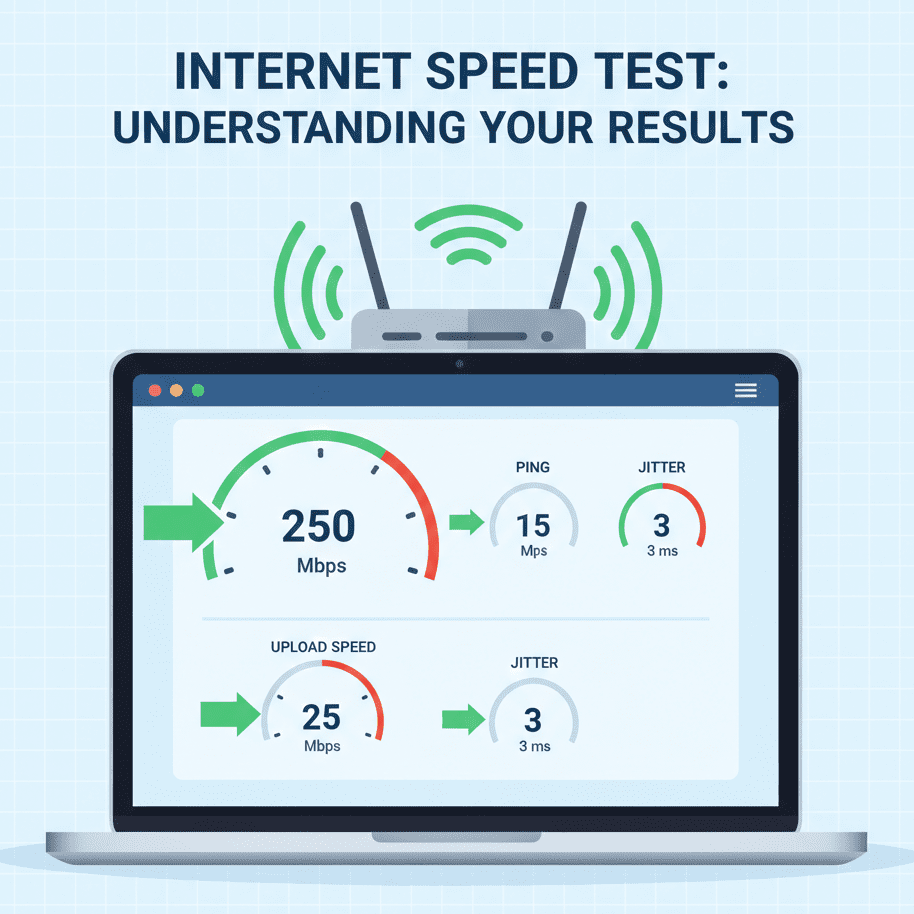
7. Check Latency and Jitter
For gaming or video calls, look at:
- Ping (ms) – lower is better
- Jitter – should be minimal
- Packet loss – should be 0%
Testing correctly helps you diagnose whether you need better router placement, upgraded hardware, or a higher-speed plan.
When to Upgrade Your Internet Plan
Upgrading your internet plan makes sense only when your current speed consistently fails to meet your household’s actual usage demands. Here are clear signs it’s time to upgrade:
Signs You Need an Upgrade
1. Speeds Are Consistently Lower Than Your Plan
If repeated network performance tests consistently show that you’re reaching the maximum of your subscribed plan
2. Multiple Users Cause Slowdowns
If your connection slows significantly when:
- 2–3 people stream simultaneously
- Someone downloads large files
- Video calls start buffering
Your plan likely lacks sufficient bandwidth for concurrent usage.
3. You’ve Added More Smart Devices
Modern homes include:
- Smart TVs
- Security cameras
- Smart speakers
- IoT devices
More connected devices increase background bandwidth consumption, even when idle.
4. You Stream in 4K or Game Online
4K streaming typically requires 25 Mbps per stream.
Online gaming requires a stable speed with low latency.
If buffering or lag occurs regularly, a higher-speed tier may help.
5. You Work from Home
Remote work involving:
- HD video conferencing
- Cloud backups
- Large file uploads
Often benefits from higher upload speeds, not just download speeds.
6. Wired Speeds Are Also Slow
If an Ethernet-connected device still shows speeds near your plan’s limit and performance feels constrained, upgrading may be the only solution.
When NOT to Upgrade
Don’t upgrade if:
- WiFi speeds are slow, but wired speeds are fast (this is a router issue).
- The router is outdated.
- Placement or interference is the real problem.
Optimize your home network first. Upgrade only when you’re confident your current plan is the actual bottleneck.
Upgrading strategically ensures you spend more only when it truly improves performance.
If you’re unsure whether your current plan is sufficient, read our complete guide on how much internet speed you need.
Check for ISP Throttling
In rare cases, Internet Service Providers (ISPs) may intentionally reduce bandwidth after heavy data usage or during peak traffic hours. This practice, known as throttling, can cause noticeable speed drops even if your router and setup are optimized.
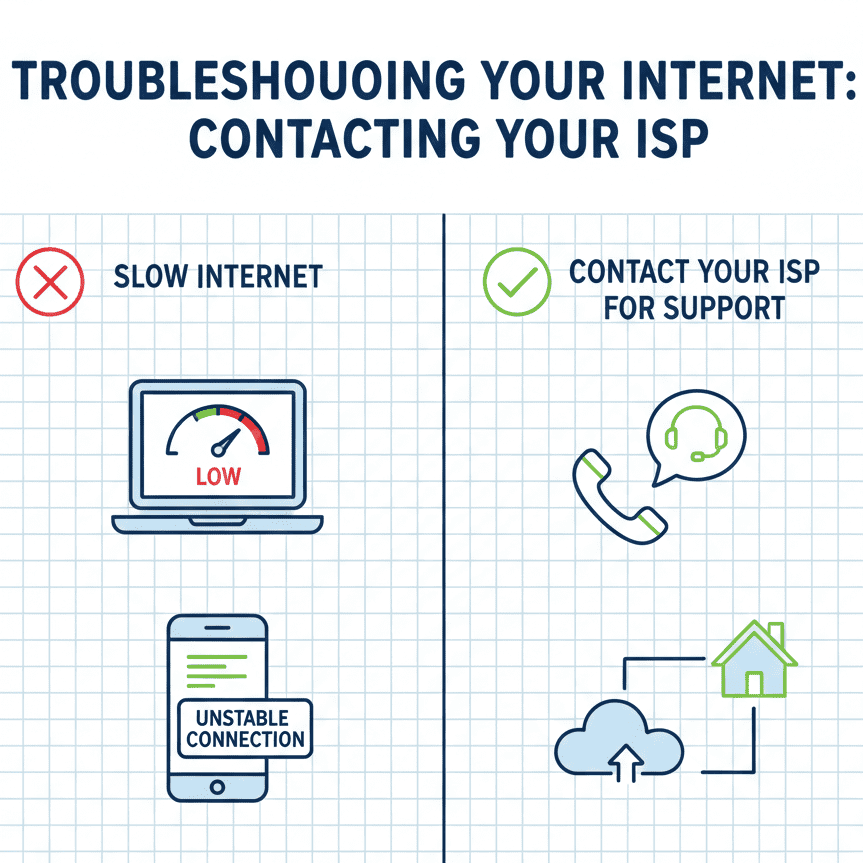
If your connection consistently slows down after reaching a certain data threshold or during specific times of the day, contact your ISP for clarification. Confirm whether your plan includes data caps, traffic shaping policies, or fair usage limits.
Best Router Types for Different Home Sizes
Choosing the right router depends on your home size and device usage. Here’s a simplified comparison:
| Home Size | Recommended Router | Type | Best For |
| Small Apartment (1–2 rooms) | TP-Link Archer C6 | Dual-Band (WiFi 5) | Basic browsing, HD streaming, light usage |
| Small Apartment (1–2 rooms) | TP-Link Archer AX10 | WiFi 6 Router | Faster speeds, better device handling, and future-proofing |
| Medium House (2–4 bedrooms) | TP-Link Deco X10 | Mesh WiFi 6 | Wider coverage, stable speeds for multiple users |
| Medium House (2–4 bedrooms) | D-Link M30 Aquila Pro AI AX3000 | Mesh WiFi 6 | Balanced performance, strong signal stability |
| Large House (Multi-floor, 2500+ sq ft) | TP-Link Deco X50 3-Pack | Whole Home Mesh System | Seamless multi-floor coverage, heavy device usage |
| Large House (Multi-floor, 2500+ sq ft) | Mercusys Halo H30G | Budget Mesh System | Affordable solution for large coverage areas |
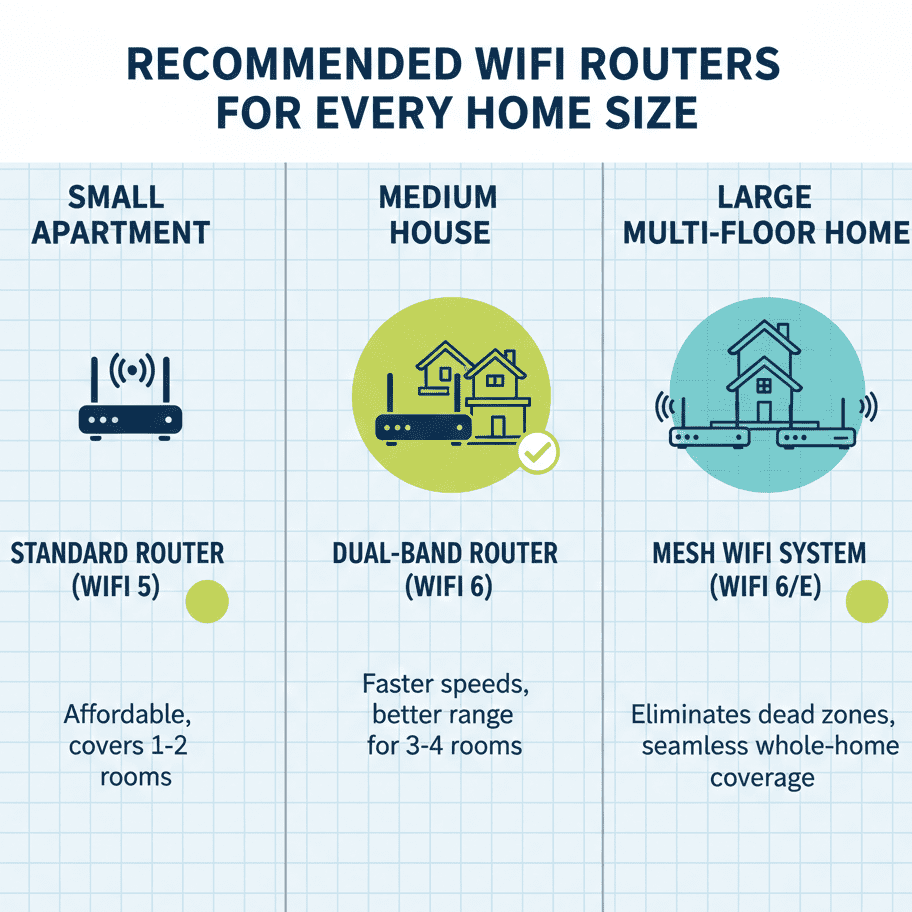
Which Option Should Most People Choose?
If you’re still unsure, here’s a simplified recommendation:
• Small apartment → A WiFi 6 router
• Medium house → Dual-node mesh system
• Large home → 3-pack mesh system
Choosing the right setup ensures better coverage, fewer dead zones, and stable speeds across all devices.
Investing in the right router often delivers better results than upgrading your internet plan unnecessarily.
Modern routers follow certification standards developed by the Wi-Fi Alliance, the global organization responsible for wireless interoperability.
If you’re unsure which router to buy, check our detailed guide on choosing the best WiFi router for home use.
Common WiFi Mistakes Most People Make
The internet provider doesn’t cause many WiFi problems — simple setup mistakes cause them. Here are the most common ones:
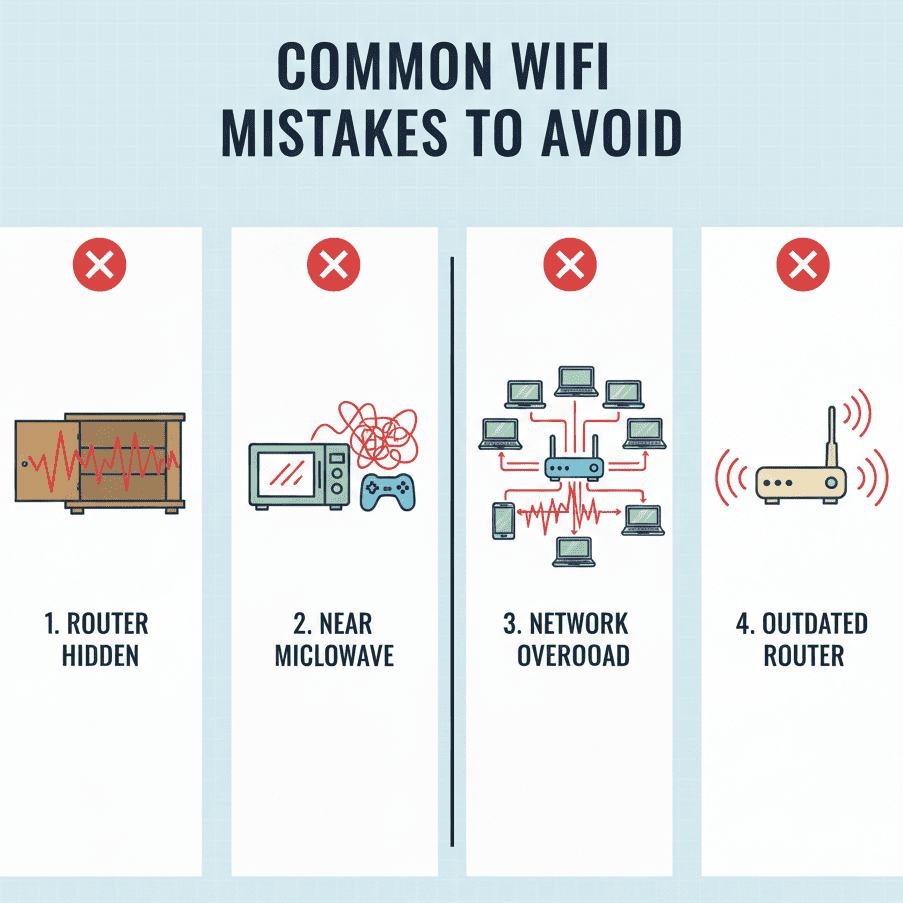
1. Hiding the Router
Placing the router inside a cabinet, behind a TV, or in a corner weakens signal strength. WiFi signals need open space to travel efficiently.
2. Never Restarting the Router
Routers run continuously and can accumulate memory issues. Restarting every 1–2 weeks helps maintain performance.
3. Using the Default WiFi Channel
Many people never change their router channel, leading to interference from nearby networks. This is especially common in apartments.
4. Ignoring Firmware Updates
Manufacturers release updates to fix bugs and improve stability. Skipping updates can reduce both speed and security.
5. Sticking With 2.4GHz Only
The 2.4GHz band offers longer range but slower speeds. Devices near the router should use the faster 5GHz band when available.
6. Overloading the Network
Streaming on multiple devices, large downloads, and automatic cloud backups running simultaneously can saturate bandwidth.
7. Using Outdated Hardware
Older routers may not support current-generation WiFi standards like WiFi 5 and WiFi 6, which are designed to deliver higher throughput, improved multi-device handling, and better spectrum efficiency.
8. Skipping Speed Tests
Without performing structured performance tests using reliable online tools, users often misdiagnose the actual issue.
Top 10 Ways to Improve WiFi Speed at Home
These WiFi optimization tips are designed for beginners and can deliver noticeable performance improvements quickly.
Now that you understand the common causes and diagnostic steps, let’s move to the 10 proven solutions that improve WiFi speed at home.
1. Move Your Router to a Better Location
WiFi signals weaken as they pass through walls and solid objects. Materials like concrete and metal can significantly reduce signal strength. Higher frequency bands, such as 5GHz, deliver faster speeds but have shorter range, while 2.4GHz travels farther and penetrates walls more effectively.
Best Router Placement Tips:
- Keep it in the center of your home
- Place it 3–5 feet above the ground
- Avoid thick walls and metal objects
- Keep it away from microwaves and cordless phones
If your router is hidden in a corner or inside a cabinet, move it. You may notice improvement instantly.
2. Restart Your Router Properly
This is the easiest fix and surprisingly effective.
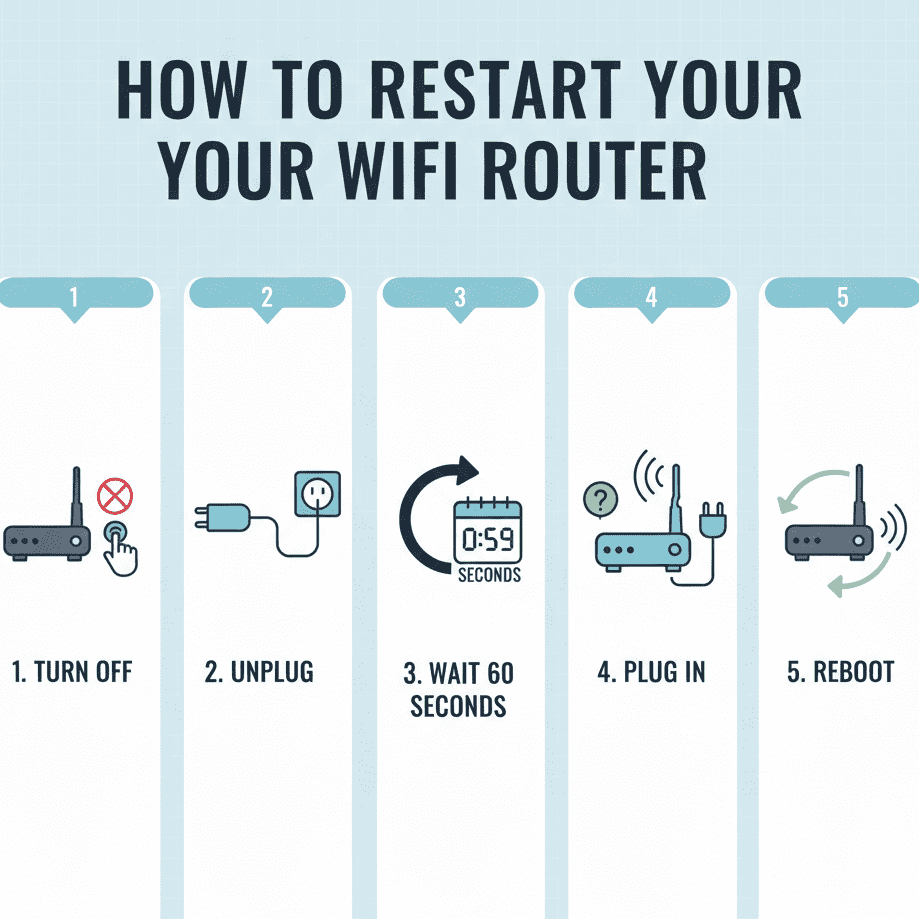
How to restart correctly:
- Turn off the router.
- Unplug it from power.
- Wait 60 seconds.
- Plug it back in.
- Allow it to fully reboot.
Restarting clears temporary memory overload and resolves minor glitches.
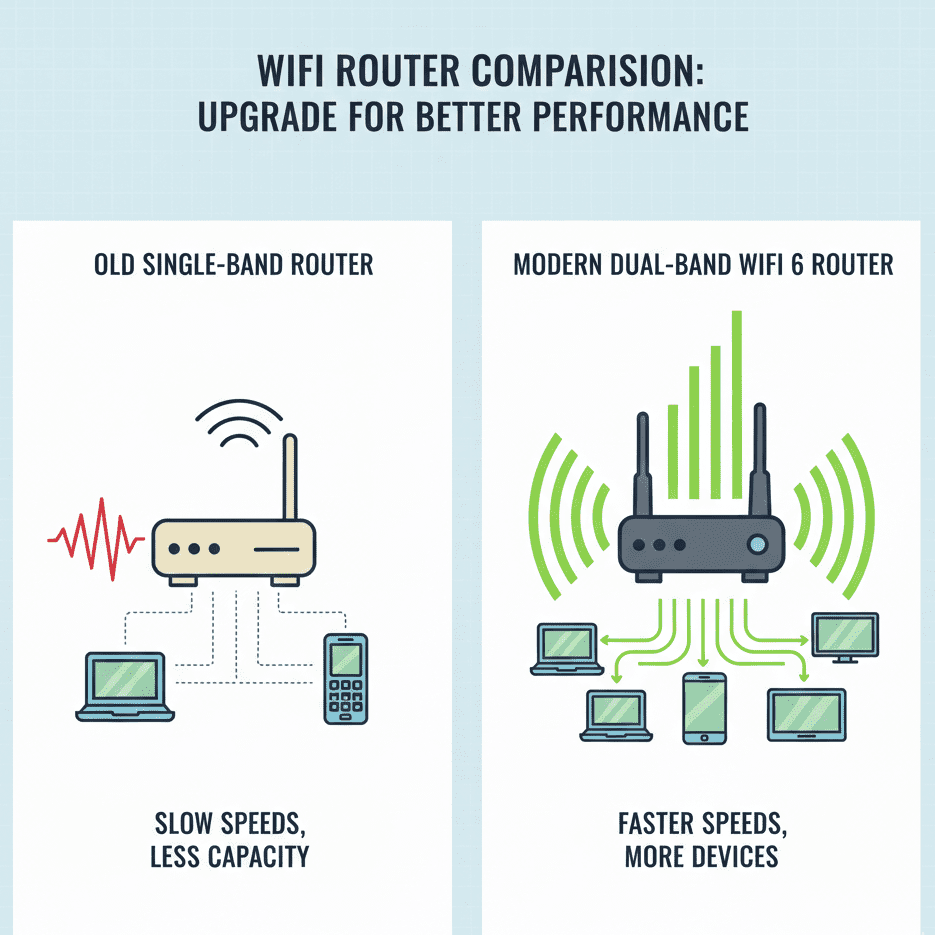
3. Upgrade to a Modern Router (Dual-Band or WiFi 6)
If your router is more than 4–5 years old, it may be limiting your internet speed.
Upgrading outdated hardware can dramatically boost home WiFi performance, especially in multi-device households.
Modern routers provide:
- Dual-band support (2.4GHz + 5GHz)
- Better coverage
- Improved device handling
- Faster data transmission
For heavy users (streaming 4K, gaming, remote work), upgrading can make a huge difference.
4. Switch to the 5GHz Band
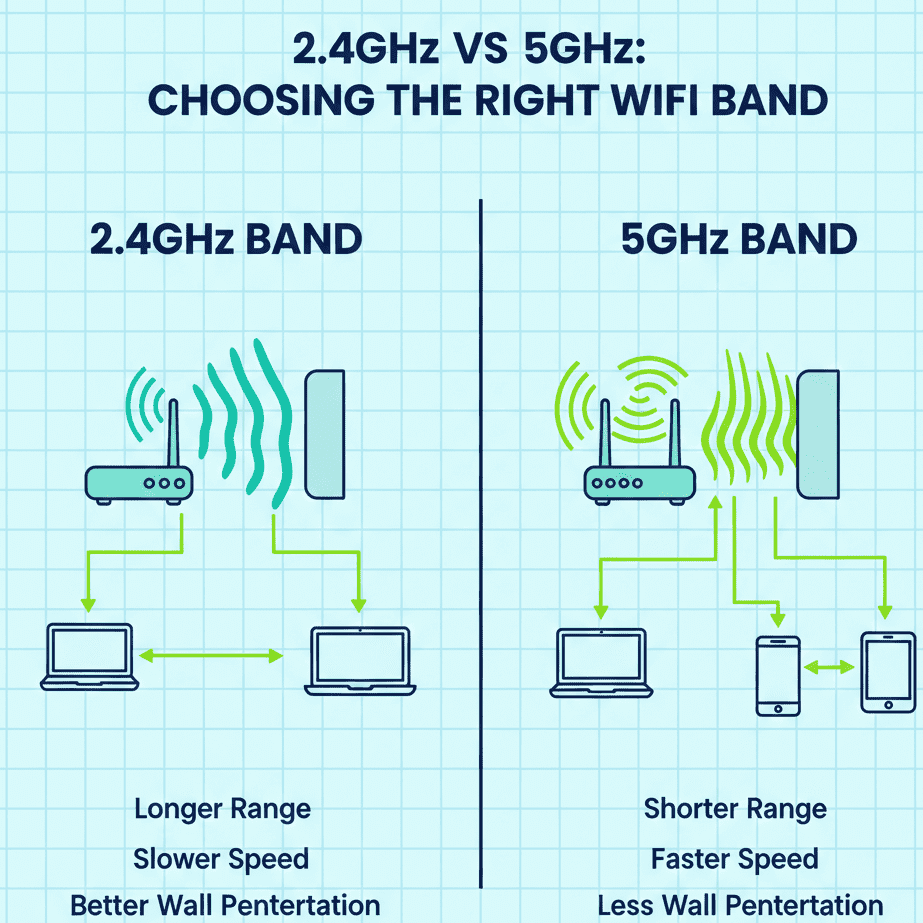
Most dual-band routers offer:
- 2.4GHz (longer range, slower speed)
- 5GHz (shorter range, faster speed)
If you are close to the router, connect to 5GHz for better performance because it operates on a less congested spectrum compared to 2.4GHz. However, its shorter wavelength means reduced wall penetration, making it ideal for nearby devices.
5. Change Your WiFi Channel
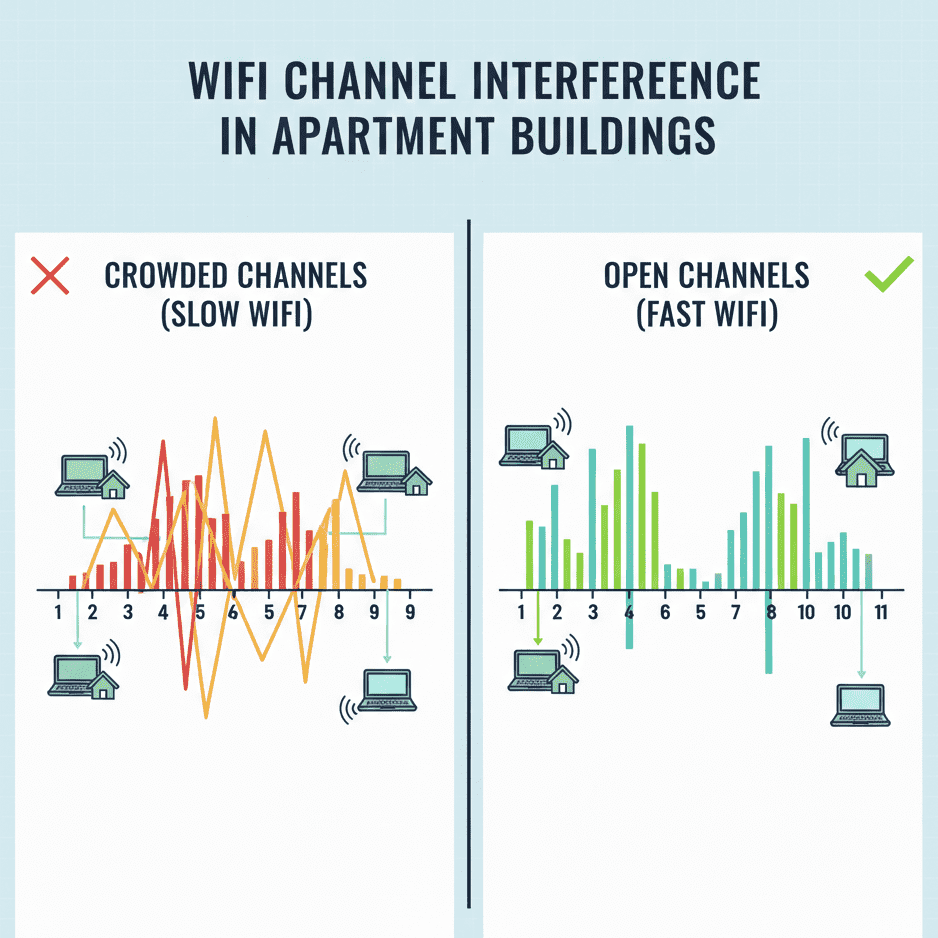
In apartments or crowded neighbourhoods, many routers operate on the same channel.
For 2.4GHz, use channels 1, 6, or 11 to avoid overlap. For 5GHz, enable auto-channel selection unless you experience instability.
This causes interference.
How to change channel:
- Log into your router (usually 192.168.1.1)
- Open Wireless Settings
- Choose a less crowded channel
This improves connection stability and speed.
6. Reduce Connected Devices
Bandwidth is shared.
Try:
- Disconnect unused devices
- Pause downloads
- Turn off auto-updates during important tasks
If 10 or more devices are streaming simultaneously, speed will drop.
7. Use Ethernet for High-Demand Devices
For:
- Gaming consoles
- Desktop PCs
- Smart TVs
Use a wired Ethernet connection.
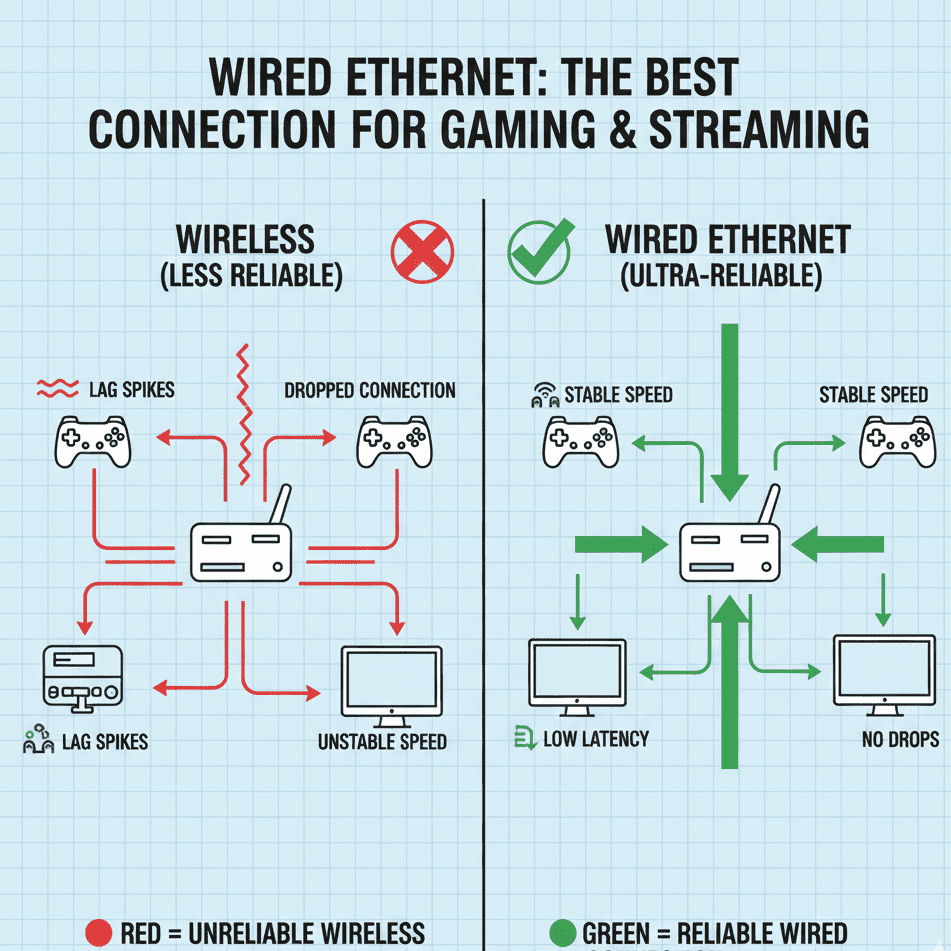
Benefits:
- Lower latency
- No signal drops
- More stable connection
This is especially useful for gamers and remote workers.
8. Update Router Firmware
Manufacturers release firmware updates to:
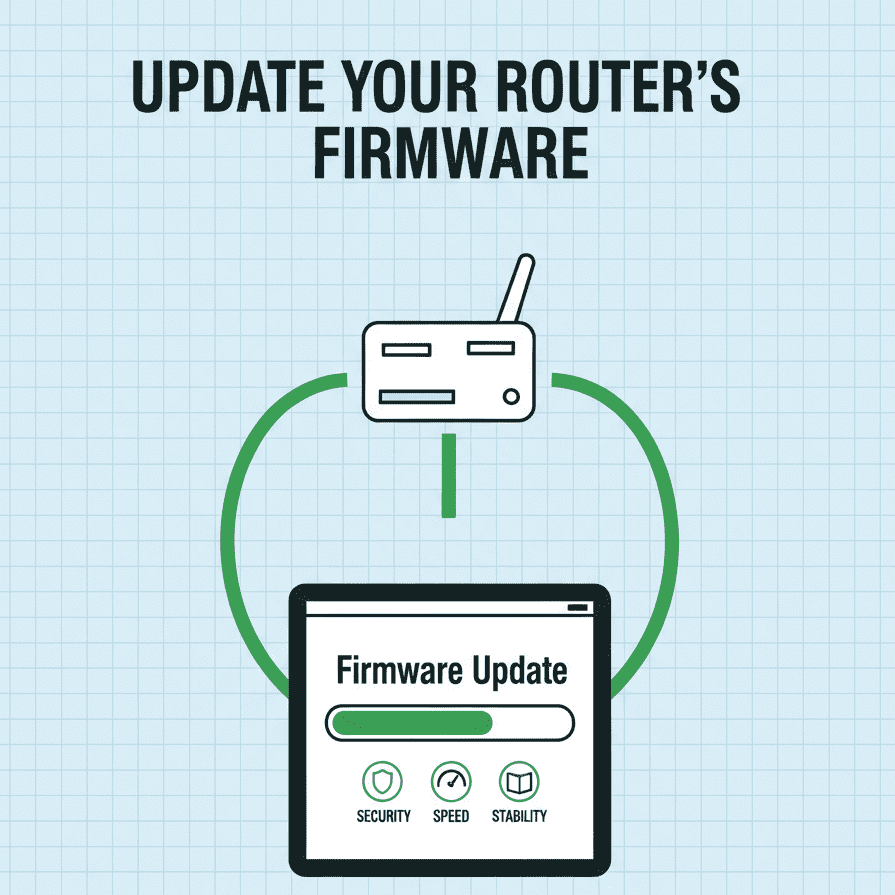
- Improve performance
- Fix bugs
- Patch security issues
Log in to your router dashboard and check for updates.
Firmware updates can improve both speed and security.
9. Install a WiFi Extender or Mesh System
If your home is large, you may experience dead zones.
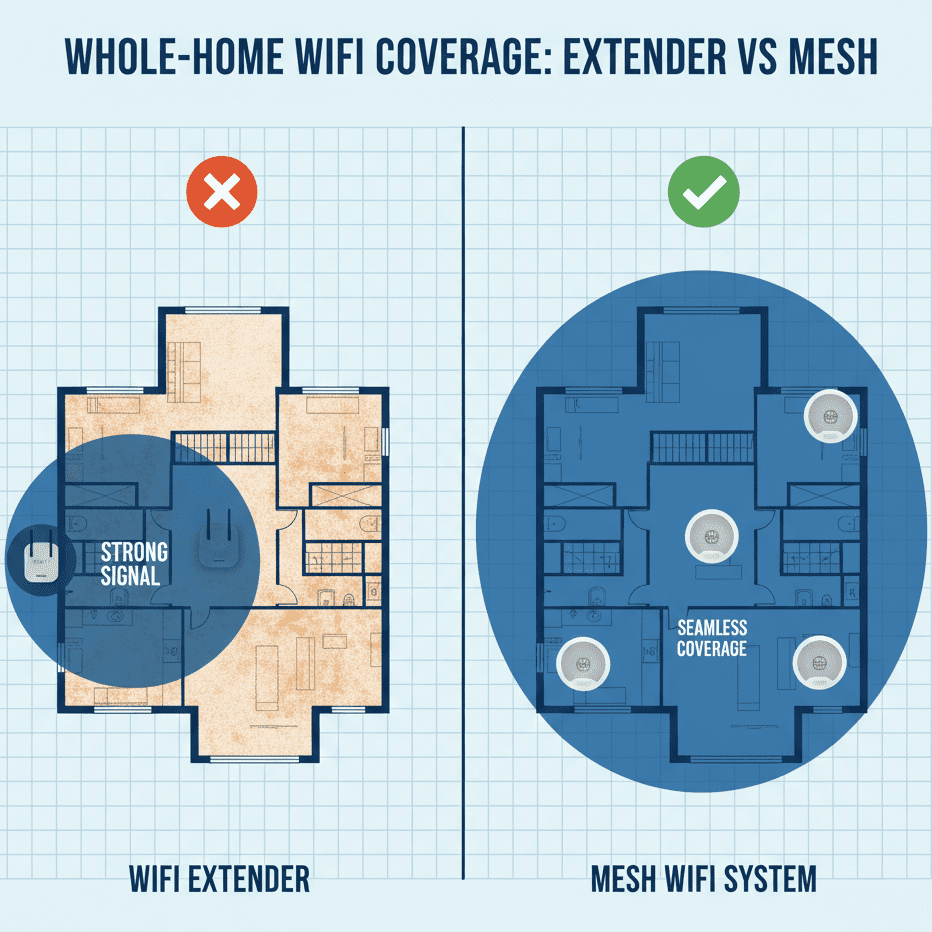
Two solutions:
- WiFi Extenders (budget option)
- Mesh WiFi Systems (premium, seamless coverage)
Mesh systems create a unified network and provide stronger signals across the room.
See our comparison of WiFi extender vs mesh systems to understand which option suits your home.
10. Contact Your Internet Provider
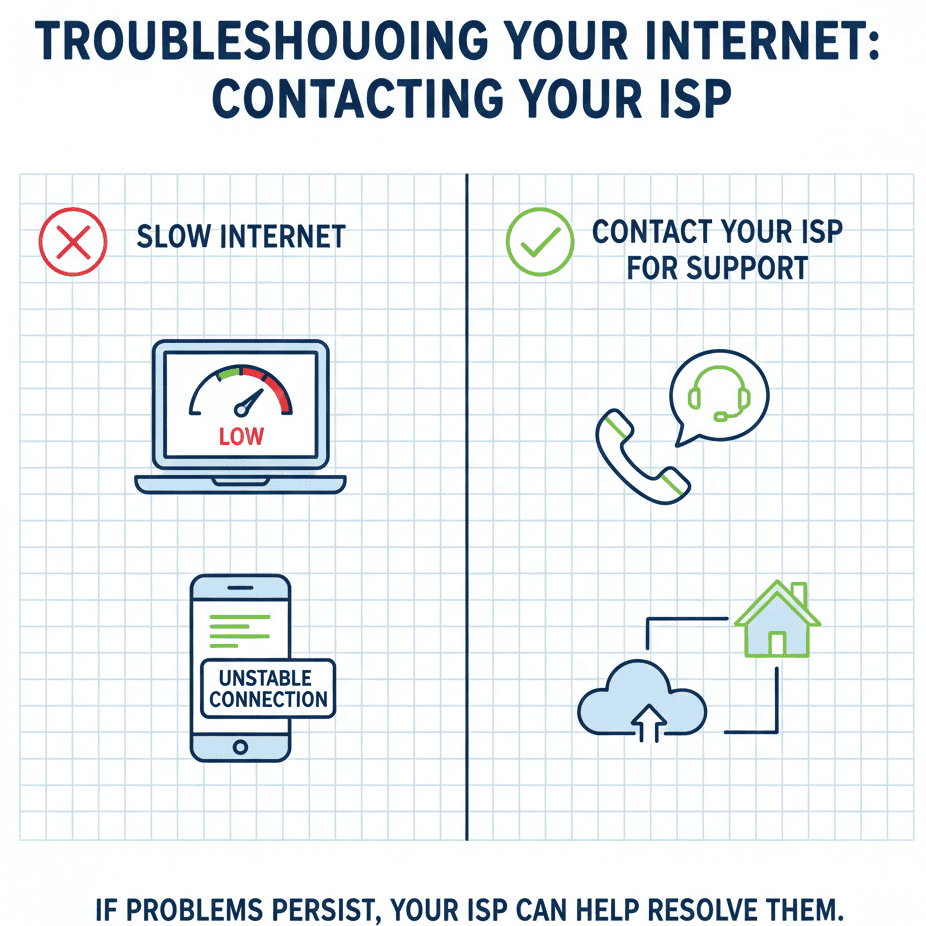
If nothing works:
- Run a Network performance test.
- Compare results with your internet plan.
- Contact your Internet Service Provider if speeds are consistently low.
You may need a higher-speed plan.
Quick Comparison Table
| Optimization Method | Cost Level | Technical Complexity | Performance Impact | Primary Benefit | Recommended For |
| Router Placement Optimization | Free | Low | Moderate | Improved signal distribution & reduced interference | Small to medium homes |
| Scheduled Router Restart | Free | Very Low | Low–Moderate | Clears memory congestion & refreshes connection | Temporary instability issues |
| Upgrade to Modern Router (WiFi 6) | Medium–High | Moderate | High | Higher throughput & better multi-device handling | Heavy users & smart homes |
| Wired Ethernet Connection | Low | Low | High | Stable latency & zero signal interference | Gaming, streaming, remote work |
| WiFi Extender | Medium | Moderate | Moderate | Expands coverage to weak zones | Large homes with dead spots |
| Firmware Update | Free | Low | Moderate | Bug fixes, stability & security improvements | All users (maintenance) |
If you want extra performance:
Advanced Optimization Tips
Enable QoS (Quality of Service)
Quality of Service (QoS) settings are available inside your router’s admin panel. You can prioritize bandwidth for gaming, video conferencing, or streaming devices to reduce lag and buffering during peak usage hours.
Change DNS Settings
Switching to public DNS services like Google DNS or Cloudflare DNS can reduce domain lookup latency. Faster DNS resolution helps websites load more quickly and improves overall browsing responsiveness.
Enable MU-MIMO and Beamforming
Modern routers support MU-MIMO and beamforming technologies that direct signals toward active devices instead of broadcasting equally in all directions. Enable these features in advanced wireless settings for better performance in multi-device environments. These features are especially useful in homes with 8 or more connected devices.
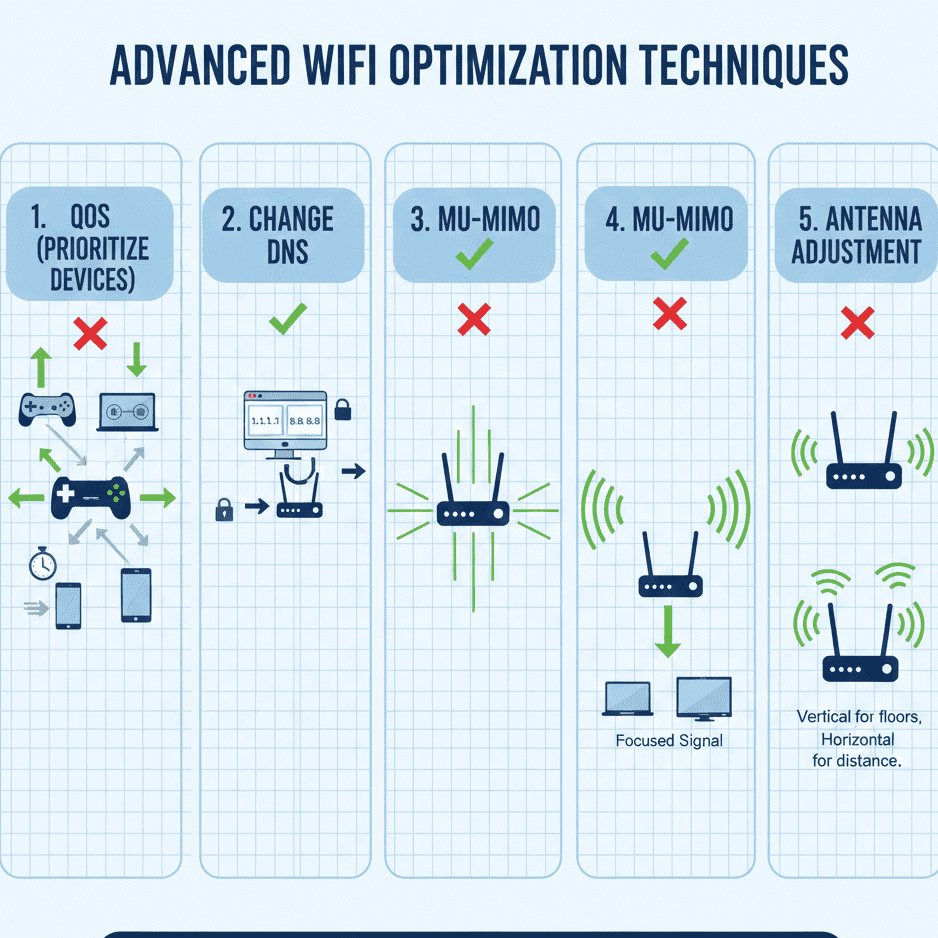
Adjust Router Antennas
Position antennas vertically for better horizontal coverage.
Applying advanced configuration changes is recommended only after completing the basic steps to improve WiFi speed at home.
Frequently Asked Questions
How can I increase the WiFi speed more quickly?
The fastest way to improve WiFi speed at home is to restart your router and modem to clear temporary network congestion and refresh the connection with your ISP. Next, move the router to a central, elevated position to reduce signal obstruction. You can also disconnect unused devices to free up bandwidth immediately.
Does router position affect speed?
Yes. Router placement directly impacts signal strength because WiFi signals weaken over distance and when passing through walls, furniture, or metal objects. Placing the router centrally and away from thick obstructions helps distribute signals more evenly and reduces dead zones throughout your home.
Is upgrading a router worth it?
Upgrading is often worth it if your current router is more than 4–5 years old. Older models may not support modern wireless standards like WiFi 5 or WiFi 6, which provide better speed, improved device handling, and stronger signal efficiency. A newer router can significantly enhance performance in homes with multiple connected devices.
Do WiFi boosters really work?
Yes, WiFi boosters or extenders can improve coverage in areas where the signal is weak. However, they do not increase your internet plan speed — they only extend the existing signal. For larger homes, a mesh WiFi system is usually more effective because it creates a unified network with better stability.
Does WiFi speed decrease at night?
In some areas, yes. During peak evening hours, more users are online in your neighborhood, which can lead to network congestion. This is especially common in shared infrastructure environments. If speed drops regularly at night, your ISP’s bandwidth capacity may be a limiting factor.
How far can a WiFi router reach?
Most standard routers provide indoor coverage of approximately 100–150 feet under ideal conditions. However, walls, floors, and interference from other electronics can significantly reduce the effective range. Larger homes often require mesh systems to maintain consistent speed across rooms.
Can thick walls block WiFi completely?
Dense materials such as concrete, brick, stone, and metal can severely weaken WiFi signals. While they rarely block signals completely, they can create dead zones where connectivity becomes unstable or very slow. Strategic router placement or additional access points can help overcome this limitation.
Conclusion
By following these practical steps, you can consistently improve WiFi speed at home without upgrading your internet plan.
Learning how to improve WiFi speed at home doesn’t require advanced technical expertise.
Most home WiFi issues are configuration problems — not ISP limitations. By diagnosing correctly and applying structured optimization steps, you can significantly enhance network performance without unnecessary expenses. Start with placement and testing before upgrading hardware or plans.
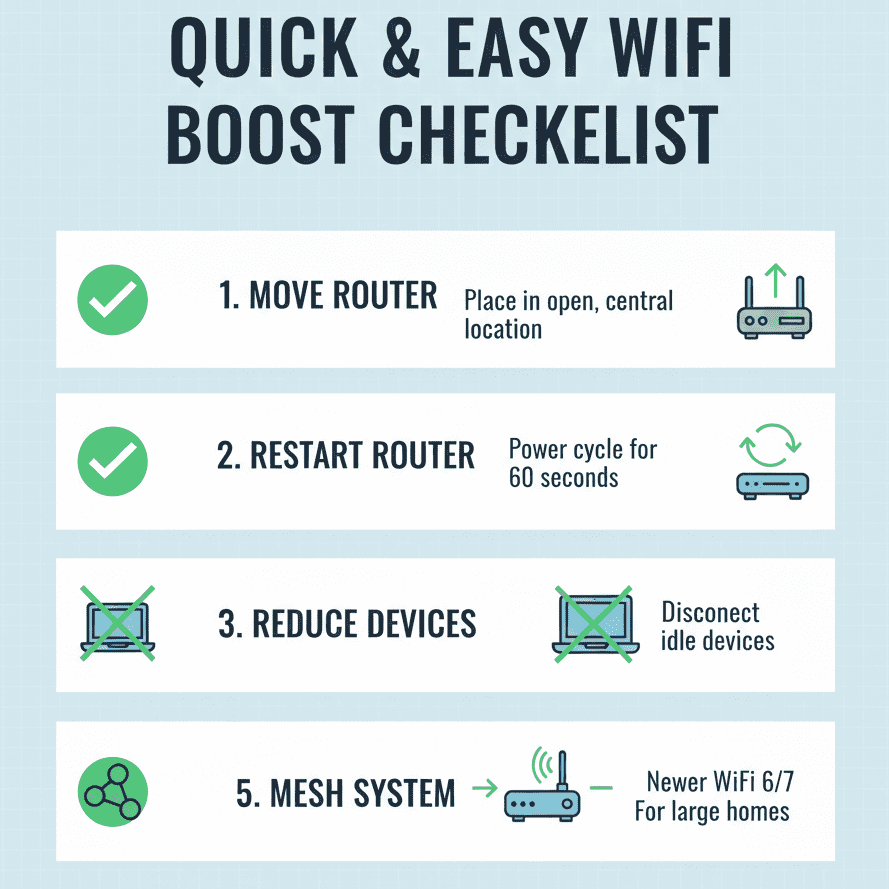
Start with:
- Moving your router
- Restarting it
- Reducing connected devices
If needed, upgrade to a modern router or install a mesh system.
If you consistently apply these strategies, you can improve your WiFi speed at home without upgrading your internet plan unnecessarily.
Even small changes can create noticeable improvements.
Author: Krishna Kumar
Krishna Kumar is a technology enthusiast who writes about home networking, internet optimization, and digital tools. He focuses on real-world network performance, WiFi optimization strategies, and practical troubleshooting methods rather than theoretical benchmarks.

How to Use ChatGPT in Daily Life – 10 Practical Ways to Boost Productivity
Introduction – How to Use ChatGPT in Daily Life – 10 Practical Ways to Boost Productivity Although Artificial Intelligence is often associated with specialists and large enterprises, it has already become integrated into everyday routines for ordinary people. Tools like ChatGPT are practical assistants that help manage tasks, improve skills, and support decision-making. Think of…

How to Create a Google Meet Link (Complete Guide to Generate, Schedule & Share Meet Links in 2026)
How to Create a Google Meet Link Introduction In today’s digital workspace, virtual meetings are essential for communication, collaboration, and business operations. Whether you are a student attending online classes, a freelancer managing clients, or a business owner leading remote teams, knowing how to create a Google Meet link is a critical digital skill. Many…

How to Create Gmail Without Phone Number (Complete 2026 Privacy Guide)
Don’t Want to Share Your Phone Number? Read This First. Creating a Gmail account sounds simple — until Google suddenly asks for your phone number. At that moment, most users hesitate. What happens to your number after you submit it?Will it be used for recovery only — or connected to your broader digital identity? And…

How to Create a Gmail Account in 2026 (Easy & Quick Guide for Beginners)
Introduction You buy a new Android phone. When you turn it on, it says, “Sign in with your Google account.”Or your school teacher says, “Send your homework by email.”Or your office manager says, “Share the file on Gmail.” But you do not have a Gmail account. A Gmail account is essential for communication, app access,…

How to make a Google Drive Account: Easy & Quick Guide in 2026
Introduction: How to make a Google Drive Account What Is Google Drive? You can imagine an online storage space that acts like a physical storage room that you can reach from any location. Google Drive functions as this type of online storage system. Users can upload their documents, photos, and videos to the online space…
Top 10 Proven Ways to Improve Wi-Fi Speed at Home
Improve WiFi speed at home Slow Wi-Fi can ruin your entire day. Slow internet can ruin your productivity. If you’re trying to improve WiFi speed at home, small adjustments like router placement and band selection can make a big difference. Buffering during a movie, lag during an online meeting, or high ping while gaming —…

What Is 5G Technology and How Is It Different from 4G? A Technical Explanation and the Benefits of 5G
1. Introduction to 5G Network The rollout of 5G is redefining how people connect, communicate, and consume digital content. Unlike previous generations of mobile networks, 5G delivers significantly higher speeds, ultra-low latency, and improved network reliability. These advancements are not incremental improvements over 4G — they represent a major technological shift. In practical terms, 5G…
Success होने के लिए डिग्री नहीं, सोच चाहिए-गरीब से crorepati तक का सफर
क्या success होने के लिए डिग्री जरूरी होती है या हमारी skills और मेहनत ? आज हमारे भारत में लाखों लोगों के पास अच्छी डिग्री नहीं है, फिर भी वे अपने skills और मेहनत से आगे बढ़ रहे है। success होने के लिए marks important नहीं, बल्कि mindset important है। Skills और knowledge ये ऐसी…

26 जनवरी: गणतंत्र दिवस का इतिहास और महत्व
भारत का एक सबसे महत्वपूर्ण स्वर्णिम दिन, जिस दिन हमारे भारत देश को एक सशक्त, लोकतांत्रिक और संवैधानिक राष्ट्र घोषित किया गया था। उस दिन को हम सभी बहुत ही हर्ष के साथ प्रति वर्ष 26 जनवरी को गणतंत्र दिवस के रूप में मनाते हैं। इसी दिन भारत में संविधान लागू हुआ और हमारा देश…
Top 15 AI Tools That Will Replace Traditional Jobs by 2026
As you all know, Artificial Intelligence is not a futuristic concept, and ideas — it is already transforming everything, not only the surroundings, but also used in industries worldwide. Automation in offices to make perfect decisions in a second. AI Tools are continuously replacing repetitive tasks that were once performed by humans. Today’s many companies…