
How to Create a Google Meet Link
Introduction
In today’s digital workspace, virtual meetings are essential for communication, collaboration, and business operations. Whether you are a student attending online classes, a freelancer managing clients, or a business owner leading remote teams, knowing how to create a Google Meet link is a critical digital skill. Many users frequently search for how to generate a Google Meet meeting link, create a Google Meet invite link, or schedule a Google Meet session for later use.

Google Meet is one of the most widely used browser-based video conferencing platforms. It allows users to create instant meeting links, schedule Google Meet sessions in advance, and share invite links securely. Because it integrates directly with Gmail and Google Calendar, users can create a Meet link from Gmail, generate a meeting link for later, or set up recurring sessions within seconds.
In this complete expert guide, you will learn how to create a Google Meet link on desktop and mobile, how to schedule a Google Meet session, how to generate a Google Meet invite link for later, and how Google Meet link expiration works — all explained step-by-step.
Table of Contents
1. What is Google Meet and Why Use It?
Google Meet is a cloud-based video conferencing platform developed by Google as part of its productivity ecosystem. It allows users to host HD video meetings, screen sharing sessions, webinars, and team collaborations.
Key Features:
- HD video and audio calls
- Screen sharing
- Live captions
- Meeting recording (for Workspace users)
- Encrypted meetings (data is encrypted in transit for secure communication)
It integrates seamlessly with Gmail and Google Calendar, allowing users to schedule, join, and manage meetings directly from their workflow.
Related Blogs: Read Now other Blogs also
2. Requirements Before Creating a Google Meet Link
Before learning how to create a Google Meet meeting link or generate a Google Meet invite link, ensure you have the following:
| Requirement | Details |
| Google Account | Gmail or Workspace account |
| Internet Connection | Stable broadband or 4G/5G |
| Device | Laptop, Desktop, Smartphone, or Tablet |
| Browser | Chrome, Edge, Safari, Firefox |
If you don’t have a Google account, create one first. Without it, you cannot host meetings (though you can join via invitation).
3. Create a Google Meet Link on Desktop (Step-by-Step)
This is the most common method for creating an instant Google Meet link or generating a Meet invite link for immediate use.
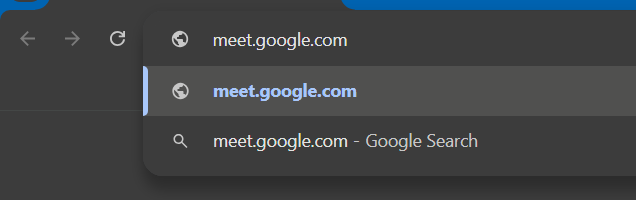
Step 1: Open Google Meet
Go to meet.google.com in your browser.
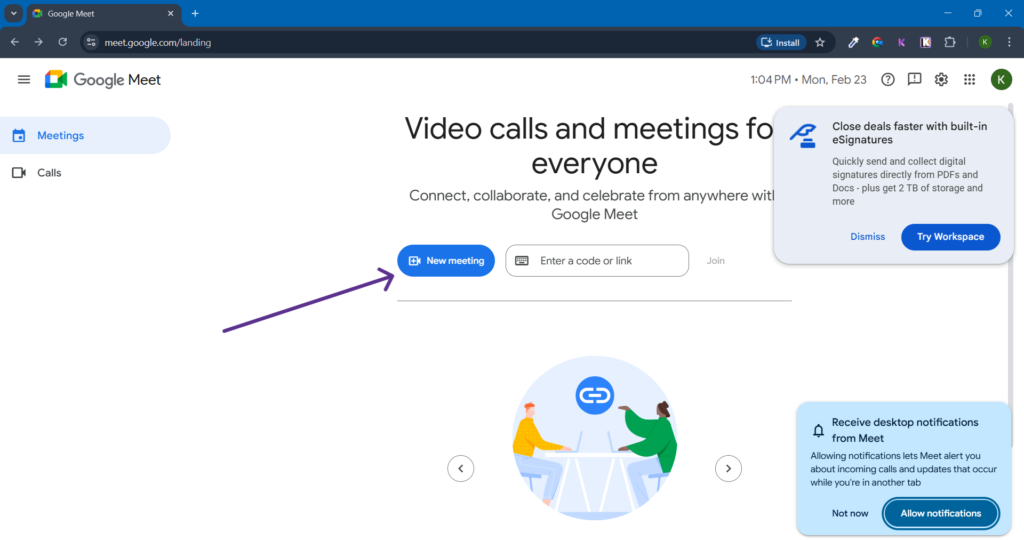
Step 2: Click “New Meeting”
You will see three options:
- Create a meeting for later
- Start an instant meeting
- Schedule in Google Calendar
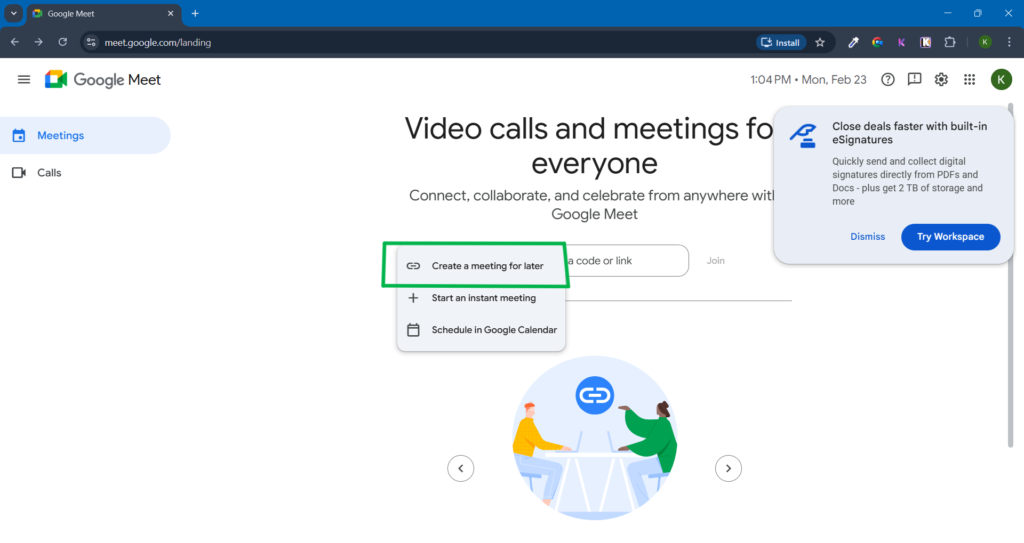
Step 3: Choose “Create a Meeting for Later”
This option allows you to create a Google Meet link for later and share the invite link without starting the session immediately.
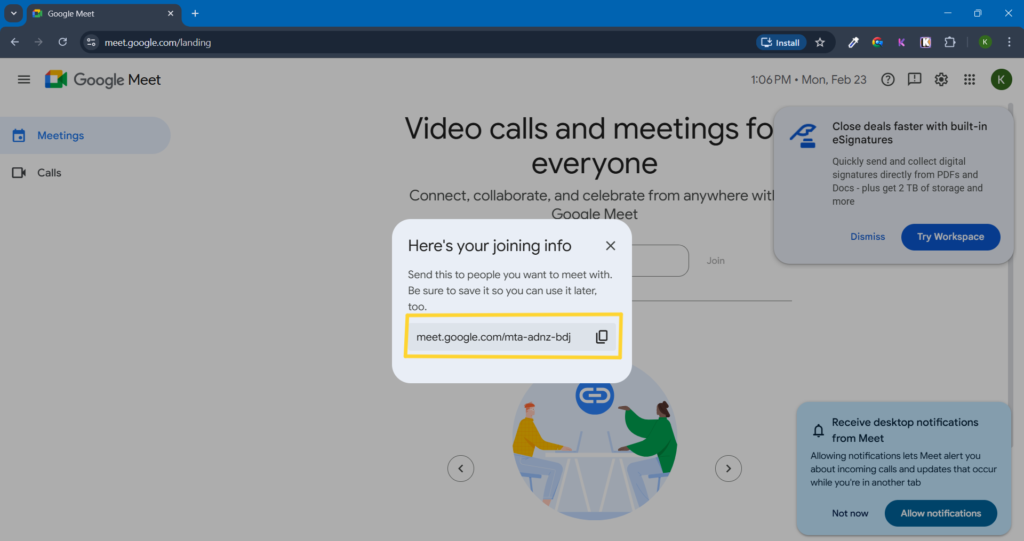
Example format:
https://meet.google.com/abc-defg-hij
Step 4: Copy and Share
Click “Copy” and share it via:
- Slack
- SMS
This method is ideal for quick meetings when scheduling is not required.
4. Generate a Google Meet Link on Mobile
You can create a Google Meet meeting link or generate a Meet invite link directly from the Google Meet mobile app.
Steps:
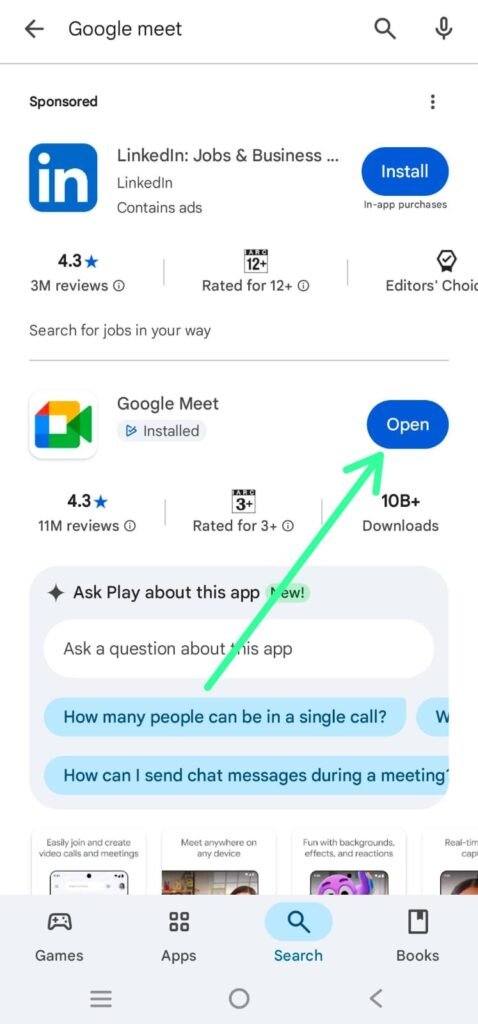
- Download Google Meet from the Play Store or App Store
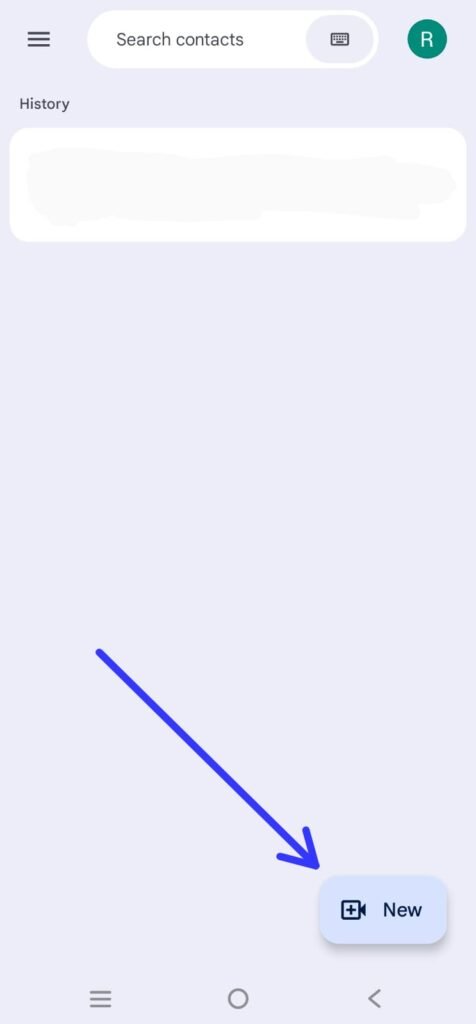
- Open the app
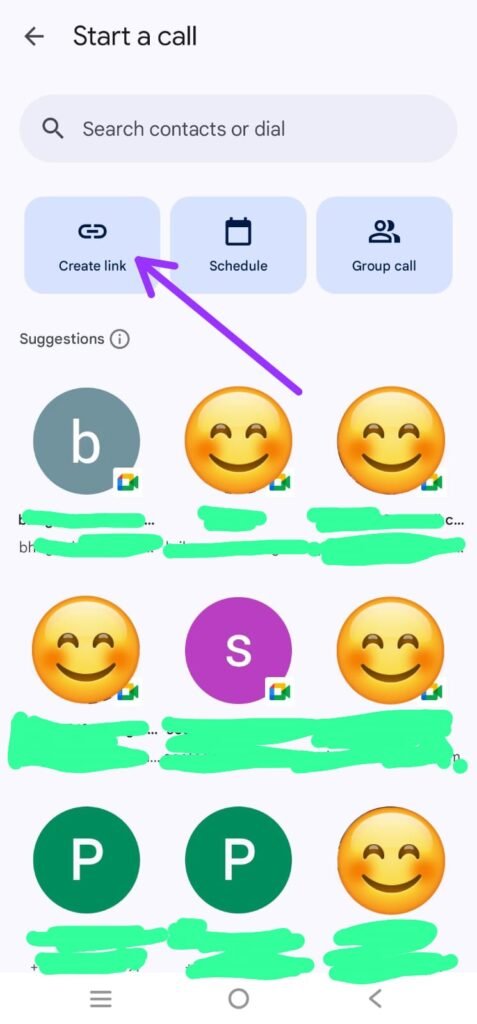
- Tap “New.”
- Select “Create a meeting.”
- Tap “Share invite.”
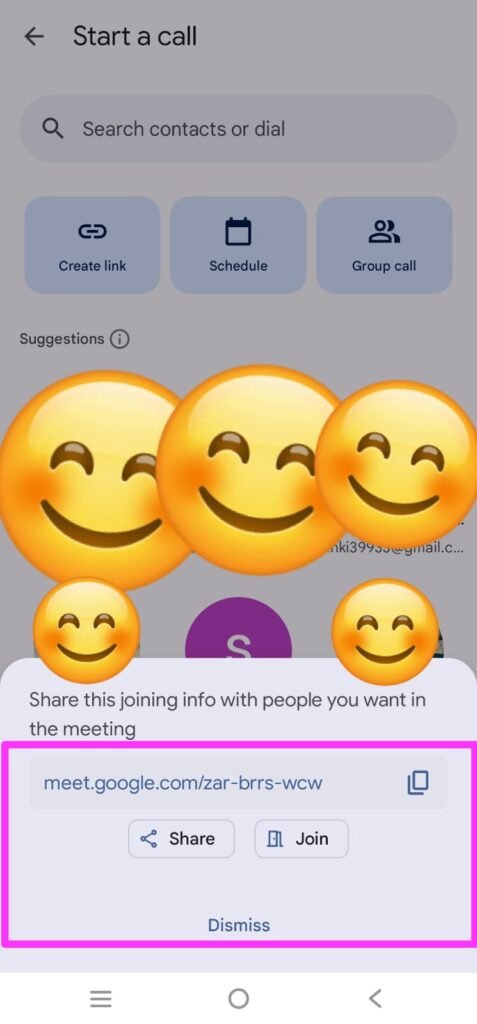
You can directly share through apps installed on your phone.
While mobile is convenient for instant meetings, the desktop version offers superior host controls, multi-tab screen sharing, and better audio management for professional sessions.
4 (I). Create a Google Meet Link from Gmail
You can also create a Google Meet invite link directly from Gmail without visiting the Meet website.
Steps:
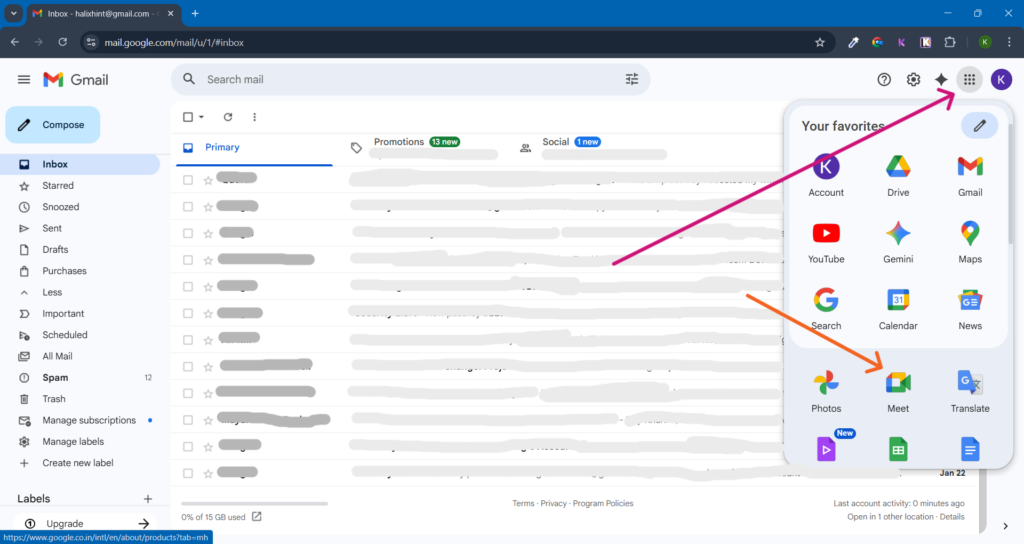
- Open Gmail
- Look at the left sidebar
- Under the “Meet” section, click “New Meeting.”
- A Google Meet link will be generated instantly
- Click “Send invite” or copy the meeting link
This method is ideal if you want to quickly create a Meet link from Gmail while already working inside your inbox.
5. Schedule a Google Meet Link Using Google Calendar
If you want to schedule a Google Meet session in advance or generate a Google Meet link for a future meeting, use Google Calendar.
Steps:
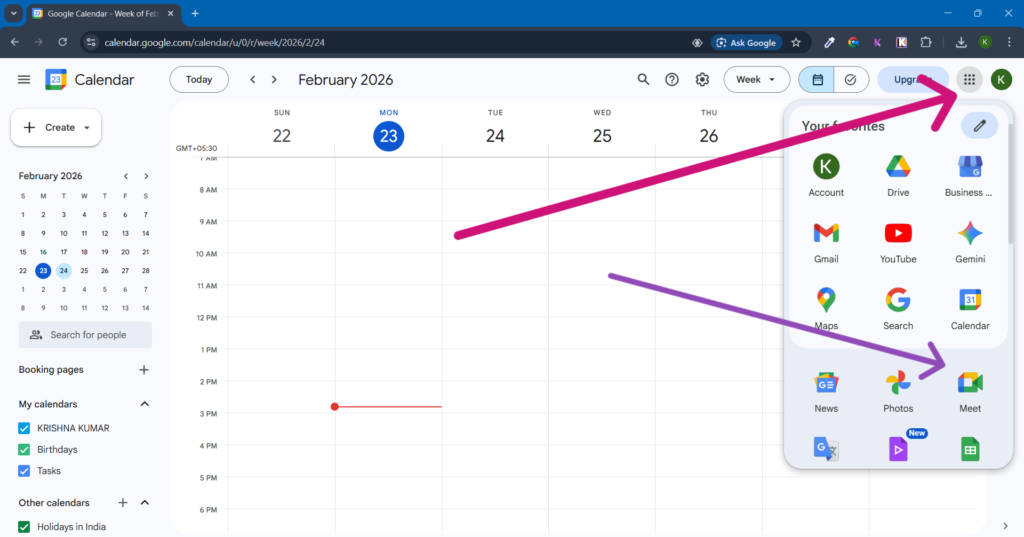
- Open Google Calendar
- Click “Create.”
- Add meeting title, date, and time
- Click “Add Google Meet video conferencing.”
- Save and add guest emails
Google Calendar automatically creates a Google Meet invite link and attaches it to the event details.
Using Google Calendar is recommended for structured and professional meetings such as:
- Client meetings
- Interviews
- Team discussions
- Online classes
For example, HR teams often schedule interviews through Google Calendar to automatically send meeting links and reminders to candidates.
6. Instant Meeting vs Scheduled Meeting (Comparison Table)
| Feature | Instant Meeting | Scheduled Meeting |
| Setup Time | Immediate | Planned |
| Link Availability | Active until the meeting ends or remains unused | Valid until scheduled meeting time |
| Email Invitations | Manual | Automatic |
| Professional Use | Limited | Highly recommended |
| Calendar Integration | No | Yes |
For professional work, scheduling via Calendar is generally recommended for better organization and reliability.
7. Security Settings and Advanced Controls
Beyond generating a meeting link, configuring proper security controls is essential to prevent unauthorized access.
Important Controls:
- Host approval for participants
- Mute participants
- Remove participants
- Disable screen sharing
- Lock meeting
- Quick Access setting (controls whether participants can join automatically or wait for approval)
For business users in Google Workspace:
- Meeting recording
- Attendance tracking
- Breakout rooms
Avoid posting meeting links on public platforms, as open access can result in unauthorized participants joining the session.
Free vs Google Workspace Comparison Table
| Feature | Free Account | Google Workspace |
| Max Participants | 100 | 100–500 (plan dependent) |
| Recording | No | Yes |
| Attendance Tracking | No | Yes |
8. Common Issues and Troubleshooting
1. Unable to Create Meeting
✔ Ensure you are logged into your Google account
2. Camera Not Working
✔ Check browser permissions
✔ Allow camera access
3. Microphone Issues
✔ Check system sound settings
✔ Select the correct input device
4. Participants Cannot Join
✔ Ensure meeting is not locked
✔ Admit participants manually
In most cases, Google Meet issues are caused by browser permission settings, outdated software, incorrect device selection, or unstable internet connectivity.
Updating your browser to the latest version often resolves compatibility issues.
9. Best Practices for Professional Meetings
Professional meetings require not just a link, but proper preparation and environmental control.
If you want to use Google Meet professionally:
- Use a stable Wi-Fi connection
- Keep your background clean
- Use headphones for better audio clarity
- Join 5 minutes early
- Share meeting agenda in advance
For client or business meetings, scheduling through Google Calendar enhances professionalism by sending automatic invitations and reminders.
FAQs – How to Create a Google Meet Link
1. Is Google Meet free?
Yes. Anyone with a Google account can create and join meetings for free.
2. How long can a free Google Meet session last?
Free accounts allow meetings up to 60 minutes for group meetings.
3. Can I create a Google Meet link without Gmail?
No. A Google account is required.
4. Can I reuse the same Google Meet link?
If created through a Calendar recurring event, yes. Instant meeting links are usually temporary.
5. Is Google Meet secure?
Yes. It uses encrypted communication and secure meeting controls.
6. Can I record meetings?
Only Google Workspace users can officially record meetings.
7. How many participants can join?
Free plan supports up to 100 participants.
8. Can I join without installing the app?
Yes. You can join via browser.
9. Does a Google Meet link expire automatically?
Instant Google Meet links created for immediate use may expire if unused for an extended period. However, if you schedule a Google Meet session through Google Calendar, the Google Meet link remains active until the scheduled event concludes. Recurring meeting links remain valid for future occurrences unless manually deleted.
About Author
Krishna Kumar has been guiding beginners in creating and managing Gmail Meet for over five years. He focuses on simple, step-by-step instructions to make digital tools easy for everyone.
Conclusion
You now understand how to create a Google Meet link using multiple methods, including desktop, mobile, Gmail, and Google Calendar scheduling. Whether you need to generate an instant Google Meet invite link, create a Google Meet meeting link for later, or schedule a Google Meet session professionally, the platform provides flexible options for every scenario.
Understanding how Google Meet link expiration works, how to share a secure invite link, and how to manage scheduled meetings ensures smoother collaboration and better productivity. By applying the expert techniques explained in this guide, you can confidently create, manage, and share Google Meet links for both personal and professional communication.