
Introduction
You buy a new Android phone. When you turn it on, it says, “Sign in with your Google account.”
Or your school teacher says, “Send your homework by email.”
Or your office manager says, “Share the file on Gmail.”
But you do not have a Gmail account.
A Gmail account is essential for communication, app access, file sharing, and online services. It is needed for:
- Online classes
- Job applications
- Android phone setup
- YouTube access
- Google Drive file storage
- Online forms
- Business communication
Some people feel nervous when creating an account. They worry:
- What if the username is not available?
- What if verification fails?
- What if I forget my password later?
Let’s walk through the process step by step.
In this guide, everything is explained in simple, clear steps so you can create your account without confusion.
By the end, you will have your own Gmail account ready to use.
Table of Contents
1. What is Gmail and How Does It Work?
Think of your Gmail account as a secure digital mailbox for important information.
When you send a traditional letter, you write it, place it in an envelope, add an address, and mail it.
In the same way, Gmail lets you send digital messages through the internet.
In Gmail:
You write a message → enter email address → click send → message goes through the internet.
Instead of a home address, you use an email address like:
yourname@gmail.com
When someone sends you an email, it comes into your inbox.
Gmail is a free email platform created and managed by Google. When you create a Gmail account, you also get a Google account. This means you can use:
- YouTube
- Google Drive
- Google Meet
- Google Docs
- Play Store
One Gmail account gives you access to multiple Google services.
2. Why Do You Need to sign up for a Gmail account today?
Let us look at real situations.
If you are a student:
Your school may send notices by email. You may need to join online classes. Gmail becomes important.
If you are working in an office:
Your boss may ask you to send reports or files. Gmail helps you send documents quickly.
If you use an Android phone:
You cannot download apps without signing in with a Google account.
If you run a small shop:
Customers may contact you by email. Gmail helps you stay connected.
In today’s digital world, Gmail has become a basic requirement for everyday tasks.
3. Things You Need Before Creating a Gmail Account
The process takes only a few minutes. But before you start, make sure you have:
- A mobile phone or computer
- Internet connection
- Your name and date of birth
- A phone number (for verification)
That’s all you need.
No documents are required. You only need basic personal details to complete the process.
4. How to Create a Gmail Account on a Computer
To create a Gmail account on a computer, follow these steps:
Step 1: Open the Gmail Website
Open your browser (like Chrome).
Type: www.gmail.com
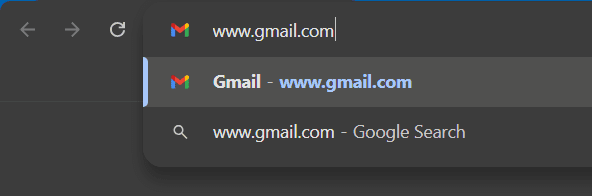
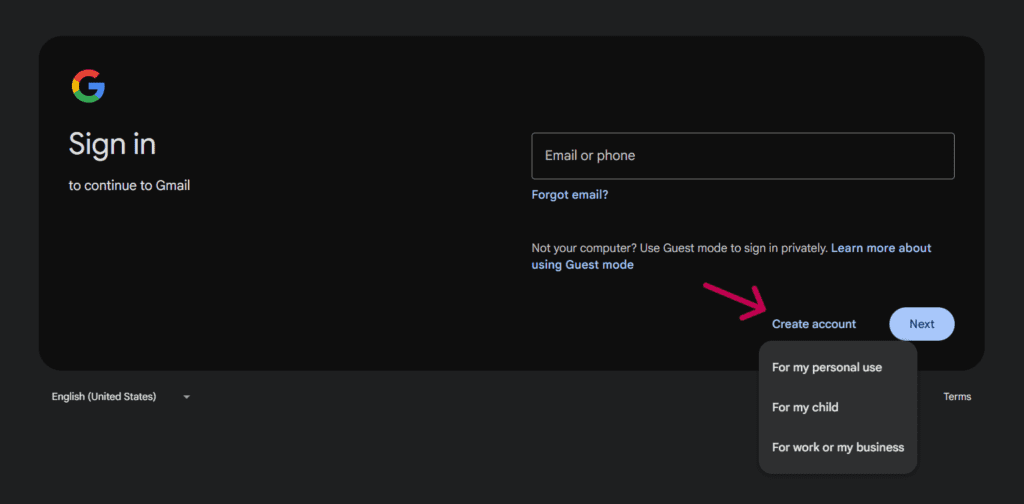
Click on Create Account.
Step 2: Enter Your Name
You will see boxes asking for:
- First Name
- Last Name
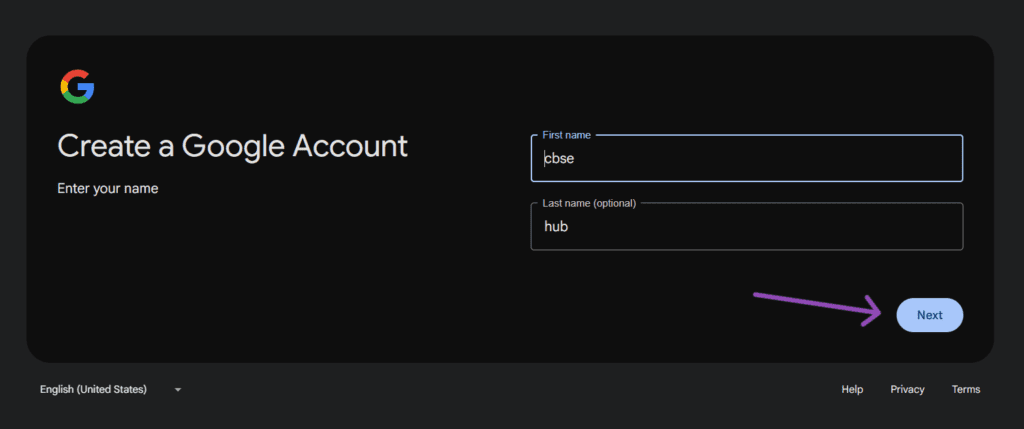
Type your real name.
Click Next.
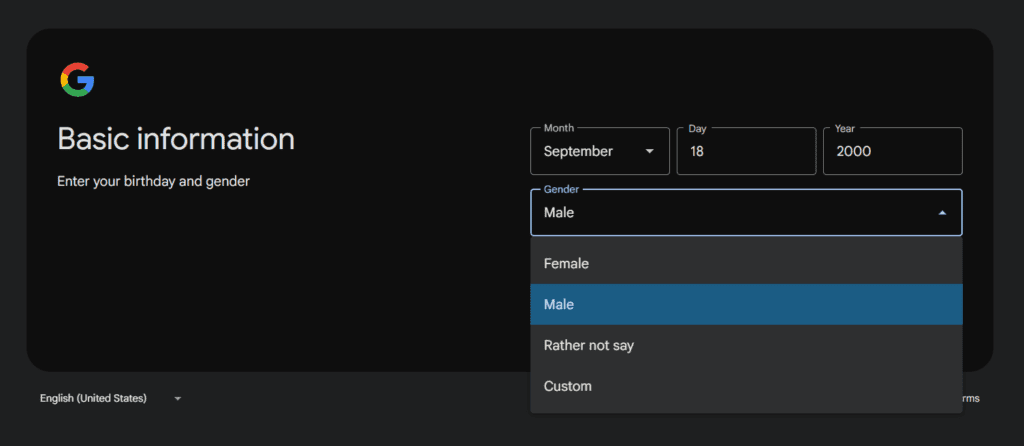
Step 3: Choose Your Email Address
Now you must choose your email name.
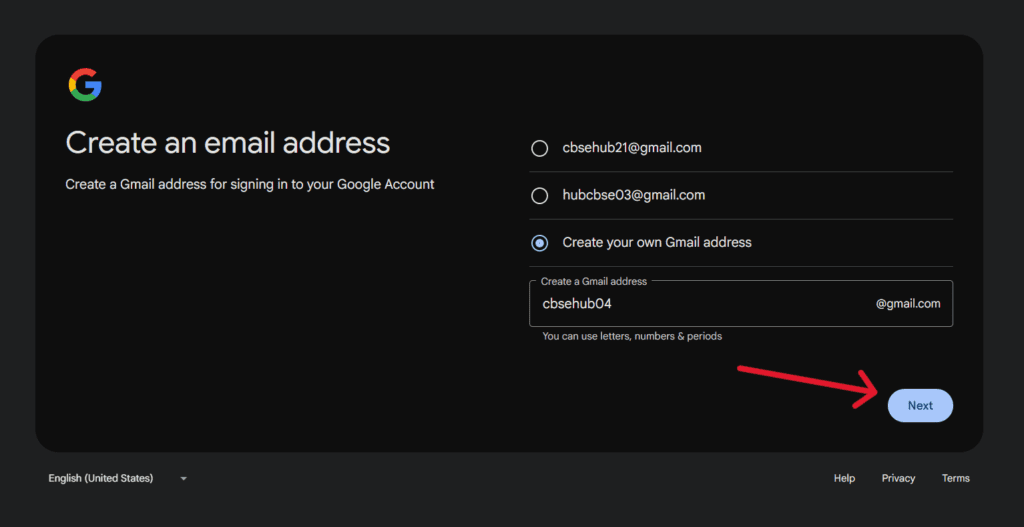
Example:
rahul123@gmail.com
If your name is already taken, Google will suggest other options.
Choose one you like and click Next.
Tip: If you want to use Gmail for a job or business, choose a simple and professional name.
Good example:
rahul.sharma@gmail.com
Bad example:
coolboyking123@gmail.com
Step 4: Create a Strong Password
Create a strong, unique password using letters, numbers, and symbols to protect your account from unauthorized access.
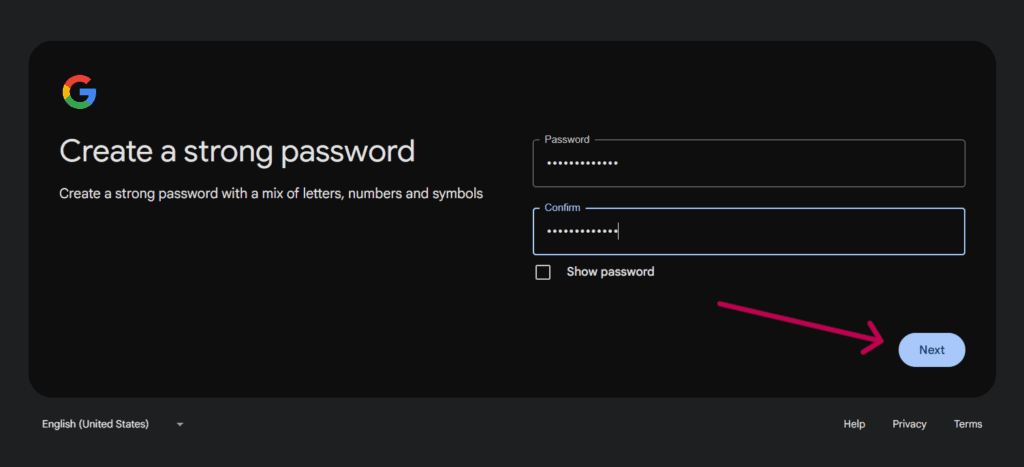
Example:
MyGmail@2026
Do not use:
123456
password
Your name only
Type it again to confirm.
Click Next.
Step 5: Verify Your Phone Number
Google will then ask for your mobile number for verification.
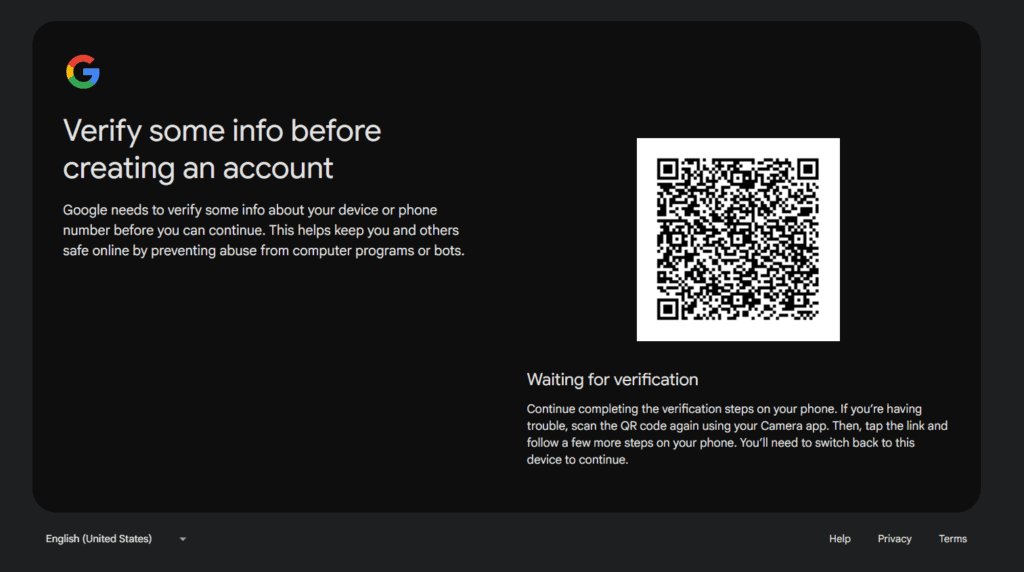
Enter your phone number.
You will receive a code by SMS.
Type that code and click Verify.
This verification step prevents unauthorized access.
Step 6: Add Recovery Details
You can add:
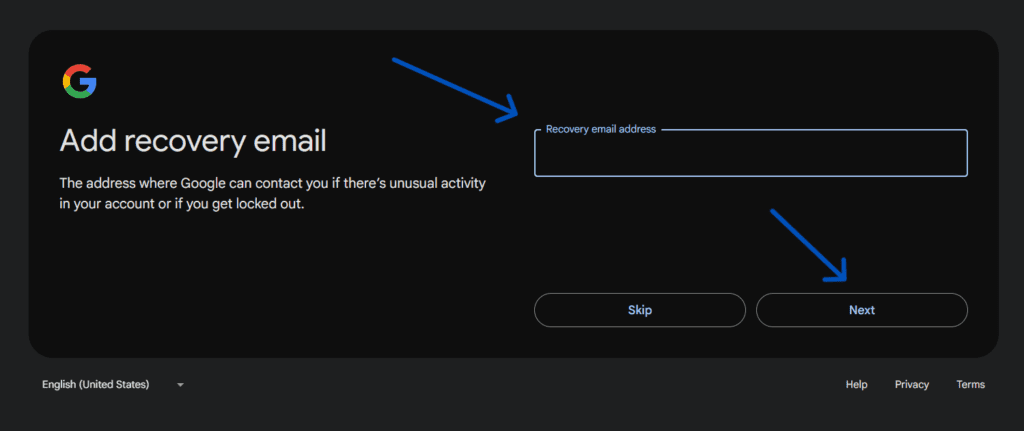
- Recovery email (optional)
- Date of birth
- Gender
Click Next.
Step 7: Accept Terms
You will see Google’s terms and conditions.
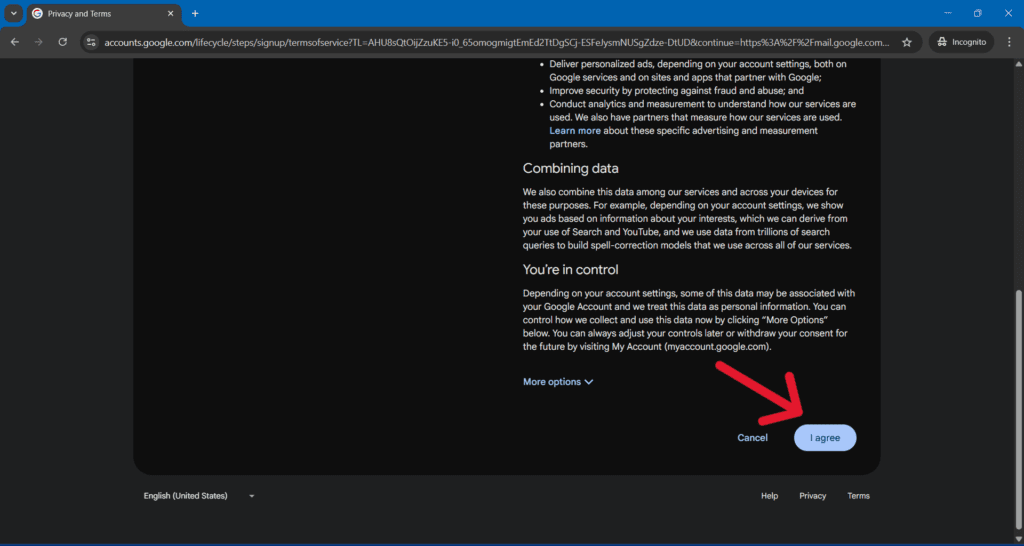
Read them.
Click I Agree.
Congratulations.
Your Gmail account has been created.
5. How to Create a Gmail Account on a Mobile Phone
You can also create a Gmail account directly from your smartphone.
Method 1: Using a Browser
- Open Chrome
- Go to gmail.com
- Tap Create Account
- Follow the same steps as above
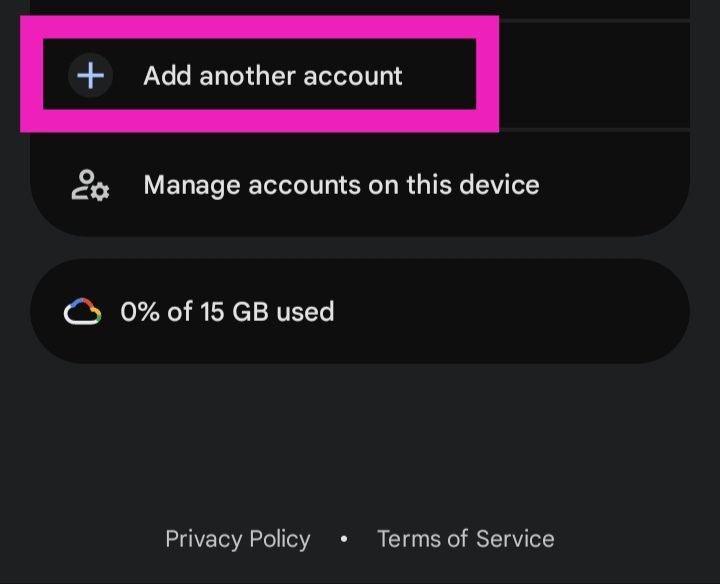
Method 2: Using the Gmail App
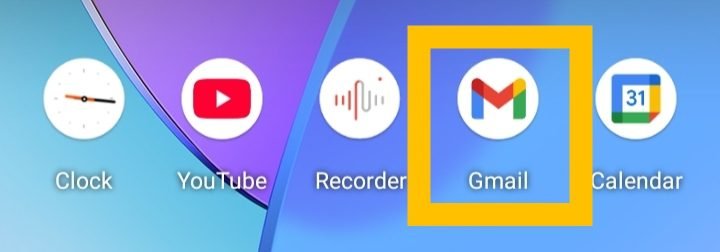
- Open the Gmail app
- Tap Add Account
- Choose Google
- Tap Create Account
- Enter your details
- Verify your number
- Accept terms
Your account is ready.
6. Common Problems While Creating Gmail (Solutions)
Sometimes people face problems.
Let’s understand them and fix these issues.
Problem 1: Username Already Taken
Solution:
Add numbers or initials.
Example:
rahul2026@gmail.com
Problem 2: Verification Code Not Received
Solution:
Wait for 1–2 minutes.
Check the network.
Tap “Resend Code”.
Problem 3: Phone Number Not Accepted
Solution:
Make sure your SIM is active.
Try again later.
These issues are common and easy to resolve.
7. What to Do After Creating Your Gmail Account
After creating your account, you may ask:
“What next?”
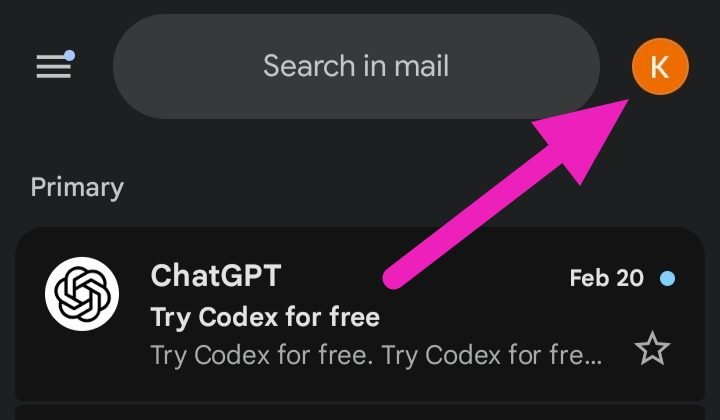
When you log in, you will see:
- Inbox (where emails come)
- Compose button (to send email)
- Profile picture icon
- Google apps menu
To send your first email:
- Click Compose
- Type email address
- Write a message
- Click Send
Your account is now ready to use.
8. How to Recover a Gmail Account (If You Forget Your Password)
This is very important.
If you forget your password, follow these steps:
- Go to the Gmail login page
- Click “Forgot Password?”
- Enter your email
- Google will send a recovery code
- Enter code
- Create a new password
If you added recovery email and phone number earlier, recovery becomes easy.
That is why recovery details are important.
Read More: How to make a Google Drive Account for free.
9. How to Change Your Gmail Password
Rahul created his Gmail account when he bought a new Android phone. He used a very simple password: rahul123. It was easy to remember.
Two days later, he noticed something strange. Some unknown emails were sent from his account. His friends asked, “Why are you sending us spam links?”
Rahul realized someone had accessed his Gmail.
He immediately changed his password and turned on 2-Step Verification. After that, his account became safe again.
This situation shows why:
- You should not use public computers without logging out
- You should change your password if something feels suspicious
Small care can prevent big problems.
Changing your password helps protect your account from unauthorized access.
You should change it if:
- You think someone knows your password
- You logged in on a public computer
- You received a security warning from Google
- You have not changed it for a long time
Changing your password keeps your account safe.
Follow these steps to update your password:
Step 1: Sign in to Your Gmail Account
Open your browser and go to gmail.com.
Log in using your current email and password.
Step 2: Open Your Google Account Settings
Click on your profile picture at the top right corner.
Then click on “Manage your Google Account.”
Step 3: Go to the Security Section
On the left side menu, click on “Security.”
Step 4: Click on Password
Scroll down until you see “Password.”
Click on it.
Google may ask you to re-enter your current password.
Step 5: Enter a New Password
Create a strong and unique password using uppercase letters, lowercase letters, numbers, and special characters.
Example:
SecureMail@2026
Avoid:
- 123456
- your name
- date of birth
Step 6: Save Changes
After typing your new password, click “Change Password.”
Your password is now updated.
Important Tips
- Do not share your password with anyone.
- Do not use the same password on multiple websites.
- Turn on 2-Step Verification for extra security.
Changing your password regularly helps protect your Gmail account from hackers and unauthorized access.
- Using Gmail for Business or Professional Work
If you want Gmail for business:
- Use professional name
- Avoid nicknames
- Add profile picture
- Add email signature
Example signature:
Rahul Sharma
Sales Manager
Phone: XXXXXXXX
This makes your email look professional and builds trust with clients.
If you require advanced security, team collaboration tools, or a custom domain (e.g., name@yourcompany.com), you can upgrade to Google Workspace.
10. Gmail Security Checklist (Very Important)
Your Gmail account stores sensitive personal and professional information. It must be protected carefully.
Follow these rules:
- Never share a password
- Use a strong and unique password for your Gmail account.
- Turn on 2-Step Verification
- Do not click on unknown links
- Log out from public computers
- Check security activity regularly
Important Warning: Phishing Emails
Sometimes hackers send fake emails that look like they are from Google.
The email may say, “Your account will be blocked” or “Click here to verify your Gmail.”
These emails try to scare you so you click a fake link and enter your password. This is called phishing. Always check the sender’s email address carefully.
Google will never ask for your password through email. If a message looks suspicious, do not click any links.
Delete it immediately. Staying alert can protect your Gmail account from hackers.
2-Step Verification means:
Even if someone knows your password, they cannot log in without an OTP.
This adds extra protection.
Conclusion
Creating a Gmail account is a simple process that gives you access to essential digital tools for communication, learning, and professional work. With the steps and security practices explained in this guide, you can confidently set up and manage your account. You are now ready to use Gmail effectively and securely.
You can confidently create your account, protect it with strong security practices, and use it effectively for personal or professional needs.
Now you are fully prepared — go ahead and create your Gmail account with confidence.
About Author
Krishna Kumar has been guiding beginners in creating and managing Gmail accounts for over five years. He focuses on simple, step-by-step instructions to make digital tools easy for everyone.
Frequently Asked Questions (FAQs)
1. Is Gmail free?
Yes, Gmail is completely free to use.
2. Can I create a Gmail account without a phone number?
Sometimes yes, but Google usually asks for phone verification for safety.
3. How many Gmail accounts can I create?
You can create more than one account. But each may need phone verification.
4. What if I forget my password?
Click “Forgot Password” on the login page.
Follow the steps to reset it.
- Can children create a Gmail account?
Yes, but for children under a certain age, parental guidance may be required.
- Is Gmail safe?
Yes. It is safe if you use a strong password and 2-step verification.
- Can I change my Gmail address later?
No. You cannot change the email name.
But you can create a new Gmail account.
- Can I use Gmail for business?
Yes. Many small businesses use Gmail.
- How long does it take to create Gmail?
Only 5–10 minutes.